Watermarking
Add a Logo Watermark to a Folder of Photos
Forty photos, one logo, and a client who wants them all marked before lunch. Doing it by hand means placing the logo on a landscape frame, then a portrait frame, then a square crop, and discovering that the mark looks huge on one and tiny on the next. The percentages in the watermark tool exist to remove that loop: set the size and margin once relative to each frame, add the folder, and let the batch run.
Prepare the logo before you add photos
The logo file decides how good the result can look. Three properties matter.
Transparency. Use a PNG with a transparent background. A JPEG logo carries a solid rectangle of background color, and that rectangle will show on every photo regardless of the position setting.
Trimmed edges. Crop away empty space around the mark. If the PNG has a wide transparent border, the tool scales the whole file, and the visible logo ends up smaller than the width percentage suggests. The margin you set in the tool and the margin baked into the file are added together.
Enough resolution. At the default Logo width (% of image) of 15, a 4000-pixel-wide photo renders the logo at about 600 pixels wide. A logo source that is only 200 pixels wide will be enlarged and look soft. Export the logo at a generous size; downscaling is safe, upscaling is not.
A white logo on transparency will disappear over a bright sky. There is no backing-box option for image watermarks, so place it over consistently dark areas or add a dark plate to the logo file.
Decide size and placement as proportions
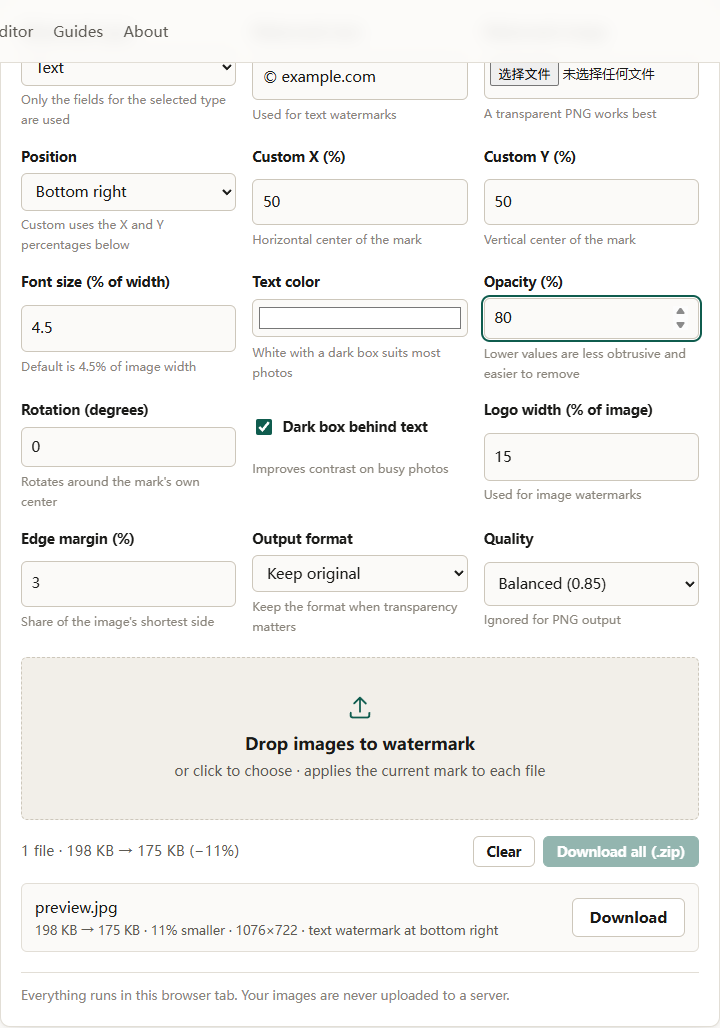
The tool’s defaults are a reasonable starting point: logo width at 15 percent of the image, edge margin at 3 percent of the shortest side, opacity at 80 percent.
- Logo width (% of image) sets the mark’s width as a fraction of the source width. The height follows the logo’s own proportions.
- Edge margin (%) is a share of the image’s shortest side, so the visual gap stays even on landscape and portrait files.
- Position offers the four corners, center, and a custom point.
- Custom X (%) and Custom Y (%) refer to the center of the watermark, measured across the image width and height. A value of 50/50 is the middle of the frame.
A single small corner mark is easy to crop out. A mark near the center, or one placed where a crop would cut into the subject, is harder to remove but also more intrusive. For portfolio previews, center or lower-center placement is a common compromise. For a client proof, a corner mark is often enough.
Watermark a batch, step by step
- Open the watermark tool. The source images and the logo are loaded into the tab; nothing is uploaded.
- Set Watermark type to Logo or image.
- In Watermark image, choose the transparent PNG. This file is reused for every photo in the batch.
- Set Position to Bottom right, or choose Custom point and set the percentages.
- Set Logo width (% of image) to 15 and Edge margin (%) to 3. Adjust after a test file if the mark feels heavy or timid.
- Set Opacity (%) to 80. Lower values are less obtrusive and easier to remove; higher values are more visible and more distracting.
- Leave Rotation (degrees) at 0 unless you want a diagonal mark. The tool measures the rotated bounding box and keeps the mark inside the frame, so a corner mark may sit slightly further in once rotation is applied.
- Set Output format to Keep original and choose Quality. PNG output ignores the quality setting.
- Add the files. In the file picker, select everything in the folder, or drag the files onto the drop zone. They are processed as a batch, each with the settings that are on screen when that file starts.
- Download each result, or download everything as a zip.
What stays consistent across a mixed folder
Because size and margin are relative, the logo occupies the same fraction of every image. On a 4000-pixel landscape photo the mark is physically wider in pixels than on a 2000-pixel portrait, but it looks the same size relative to the frame. That is usually what “consistent” means for a batch.
The trade-off is that a very wide panorama and a tall portrait do not have identical geometry. A 15 percent width on a panorama is a small fraction of the total area, while on a portrait it is more prominent. If the folder mixes extreme shapes, process the panoramas separately with a larger percentage, or accept the variation.
Opacity and color behave the same way across the batch. A white logo at 80 percent reads well over dark areas and poorly over pale ones. If the folder has both, a light mark with a dark plate in the logo file is more reliable than tuning opacity per image.
Things the tool does not do
It helps to know the boundaries before planning the workflow.
- The dark box is for text only. The Dark box behind text checkbox does not apply to image watermarks. There is no automatic backing plate for a logo.
- There is no batch rename field. Output files are named from the source name with a prefix. If the folder needs a naming convention, rename the originals before processing.
- There is no folder picker. You add the files through the picker or by dragging them; the tool does not scan a directory by path.
- There is no automatic placement detection. Position is the corner, center, or percentage point you choose; the tool does not look for a blank area.
- There is no AI object removal or content-aware fill. The mark is drawn on top of the pixels.
None of these limits prevent a batch workflow. They just mean the setup is explicit rather than automatic.
Opacity, legibility, and the strength of the mark
Opacity is a balance between reading the credit and preserving the photo. At 80 percent the mark is clearly visible. Dropping to 50 percent makes it subtler, but it also makes it easier to clone out, and it can vanish entirely over a busy texture.
Test the brightest and busiest image in the folder first, because that is where the mark is most likely to fail. If it disappears, add a dark plate to the logo file or raise the opacity; then check a dark photo to make sure the mark has not become a distraction.
Rotation is worth using sparingly. A diagonal center mark is harder to crop around but covers more of the picture; a zero-degree corner mark is the least destructive and the easiest to remove.
Prepare the files, then process
The tool accepts files up to 50 MB and 40 megapixels. A larger scan needs a smaller copy first; the image resizer can produce one. If the folder is also destined for a byte-limited upload, compress the watermarked copies afterward with the image compressor.
Keep the unwatermarked originals. The marked files are derivatives, and a watermark cannot be removed without damaging the pixels. If a client later buys the full-resolution image, you will need the clean source.
A checklist
- Use a trimmed, transparent PNG logo with enough resolution.
- Test one photo before running the folder.
- Keep the logo width and margin as percentages, not fixed pixels.
- Match the mark’s color to the area it will sit over.
- Remember that the dark box is text-only.
- Rename originals first if the output names matter.
- Keep clean originals; the watermarked copies are for publication.
The broader workflow, including text marks and what a watermark can realistically protect, is covered in adding a watermark to multiple images.