Compression
JPEG Quality Settings: What the Number Actually Changes
Export the same photo at quality 85 from two different programs and you get two different files: different byte counts, sometimes different artifacts, occasionally a visible difference along a hard edge. The number is not a percentage of quality, and it is not a file size control. It is one input to a quantization step, and what it does depends entirely on the encoder that receives it.
The number is a quantization control
JPEG converts each 8×8 block of pixels into frequency coefficients, then divides those coefficients by values from a quantization table. The quality setting scales that table. A higher number means smaller divisors, so more coefficients survive. A lower number means larger divisors, so more coefficients round to zero.
That is the whole mechanism. There is no measurement of how the image looks, no comparison with the original, and no notion of “80 percent quality.” The encoder does not know whether it is compressing a portrait or a screenshot. It applies the table and writes the result.
Because the mapping from a number to a table is defined by the encoder, 80 in one application is not 80 in another. Browser canvas encoding, desktop image editors, and a camera’s in-camera JPEGs all use different tables or different rounding. Comparing quality numbers across tools is meaningless unless the underlying encoder is the same.
What else changes with the setting
Two other things often move with quality, and they matter more than most people expect.
Chroma subsampling. JPEG stores brightness at full resolution and color at reduced resolution, because the eye resolves luminance detail better than color detail. Many encoders switch from 4:2:0, where color is stored at half width and height, to 4:4:4, where it is stored at full resolution, at high quality settings. That switch can change file size sharply around a particular threshold, and it improves saturated red edges and fine colored text.
Quantization table selection. Some encoders interpolate between a few base tables rather than scaling one table continuously. The result is that quality 84 and 86 may produce identical files, while 86 and 88 differ by a surprising amount.
Neither behavior is standardized. This is why a “quality 90” export from two programs can differ in both bytes and appearance.
Where the bytes actually go
File size does not fall in a straight line as quality drops. The curve is steep at the top: going from 1.0 to 0.92 usually removes a large share of the file for almost no visible change. Going from 0.92 to 0.82 removes less, and the change starts to be visible in difficult areas. Below roughly 0.7, size savings continue but artifacts become easy to find.
That shape is general, not a guarantee for a specific image. A soft portrait with a blurred background compresses well at almost any setting. A frame filled with foliage, fabric texture, or fine hair needs more data, and the same quality number will produce a much larger file and more visible damage.
The artifacts, in the order they appear
At mild compression, the loss is invisible at normal viewing size and only shows as slight softness in fine texture at 100 percent.
As quality drops, four artifacts appear in roughly this order:
- Ringing around hard edges, such as text on a contrasting background or a roofline against the sky.
- Blocking, where the 8×8 grid becomes visible in smooth gradients and dark areas.
- Banding in skies and studio backdrops, where smooth tonal transitions become visible steps.
- Color bleeding at saturated edges, especially red on white, when chroma is subsampled.
Text is the least forgiving subject. A screenshot or a graphic with small type can look acceptable at 0.9 and unreadable at 0.7, while a landscape photo at the same settings shows only mild softening.
Choosing a setting
| Setting (0–1) | Typical use | What to expect |
|---|---|---|
| 0.95–1.0 | Archival delivery, print handoff | Largest files; still lossy; gains over 0.92 are often invisible |
| 0.90–0.92 | Client delivery, high-quality web | Hard to distinguish from source at normal size |
| 0.80–0.85 | General web images | Good balance; artifacts visible only on close inspection |
| 0.70–0.75 | Thumbnails, previews, strict byte limits | Visible softening and some blocking in detailed areas |
| Below 0.70 | Last resort | Obvious artifacts; consider reducing dimensions instead |
These are starting points, not rules. The right setting depends on subject, final display size, and how many times the file will be re-encoded.
Dimensions beat quality for file size
If the goal is a smaller file, reducing pixel dimensions usually does less visual harm than crushing quality. Halving width and height leaves one quarter of the pixels. The image is then displayed smaller, where the remaining detail is enough. Dropping quality to 0.5 keeps the dimensions but damages every pixel.
The tools make the trade visible. A 4000×3000 JPEG run through the resizer to 800×600 came out at 21 KB. Sent to the compressor with a 200 KB target instead, the same source kept 2890×2168 and landed at 195 KB. The smaller file is smaller because it has fewer pixels, not because the encoder tried harder.
For a web image displayed at 800 pixels wide, exporting a 4000-pixel original at quality 0.6 is the worst of both approaches: a large file that also looks bad when zoomed. Resize first, then choose a moderate quality. The image resizer handles the first step, and the compressor can work backward from a byte target.
Every save is another generation
JPEG is lossy, so decoding and re-encoding does not return the original pixels. Each pass approximates an already approximated image. The damage is small for one pass at high quality and obvious after several passes at moderate quality, especially if the image is opened, edited, and saved repeatedly.
Convert from the best original you have. Do not use a JPEG as the source for a PNG “upgrade,” and do not re-encode a JPEG just to change its name. If a platform requires a different format, convert once from the master and keep that output.
Doing it in the browser
The format converter exposes the setting directly.
- Open the converter and add the files. Processing happens locally in the tab.
- Set Convert to JPEG.
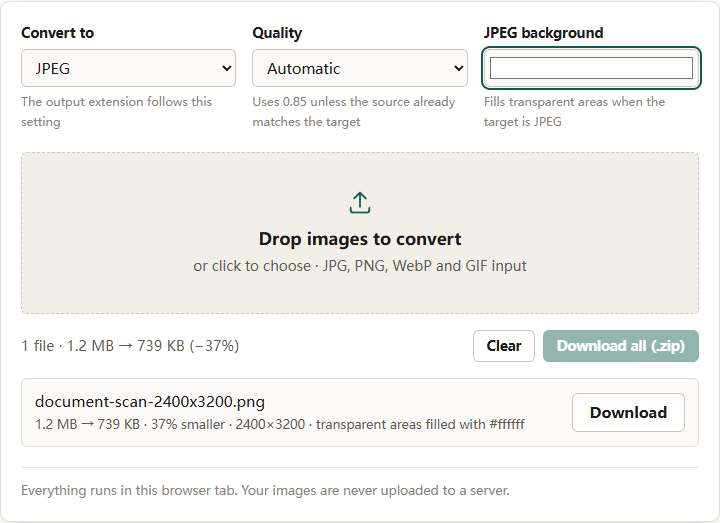
- Set Quality to High (0.92) for delivery, Balanced (0.82) for the web, or Small file (0.70) for previews. Automatic uses 0.85.
- If any source has transparency, set the JPEG background color before converting. JPEG has no alpha channel, and the fill is applied before the image is drawn.
- Convert one file and inspect it at 100 percent before running the batch.
Converting is not the same as compressing. In the captured run, a 2400×3200 PNG document scan became a 739 KB JPEG, 37% smaller than the 1.2 MB source, with transparent areas filled with #ffffff.
For a hard byte limit rather than a quality preference, use the compressor with a target size. It searches quality automatically and reduces dimensions when quality alone cannot reach the target. The guide to compressing an image to 100 KB walks through that trade-off.
The short version
The quality number scales a quantization table. It is not a percentage, it is not comparable across encoders, and it is not a file size setting. Choose 0.92 when quality matters, 0.82 for general web use, and 0.70 only when bytes are tight. Resize before you compress, and never re-encode a file you could replace with the original.