Social media
LinkedIn Image Crops: Ratios and Safe Areas That Survive Every Placement
Upload one square logo to LinkedIn and it appears as a circle on the profile, a small tile in search, and a different crop again on the company card. The file never changed; the frame did. Preparing one export and pushing it into every placement is how logos lose their outer strokes and banners lose their taglines.
The ratios and safe areas are stable design facts. The exact pixel dimensions and file limits are provider rules that change. This guide keeps those two categories separate.
Three families of placement
Identity images. The personal profile photo and the company page logo. These are square uploads displayed inside a circular or rounded mask. The subject must survive the mask, which means keeping the important content away from the corners.
Cover images. The personal background banner and the company page cover. These are wide strips. On mobile, the profile photo or logo overlaps the lower-left area, and the top and sides may be cropped. The center is the only reliably visible region.
Content images. Feed posts, article headers, and link previews. These support landscape, square, and vertical ratios, and the feed may crop a vertical image to a shorter frame. Text near the edges is the first thing lost.
Profile photos and logos
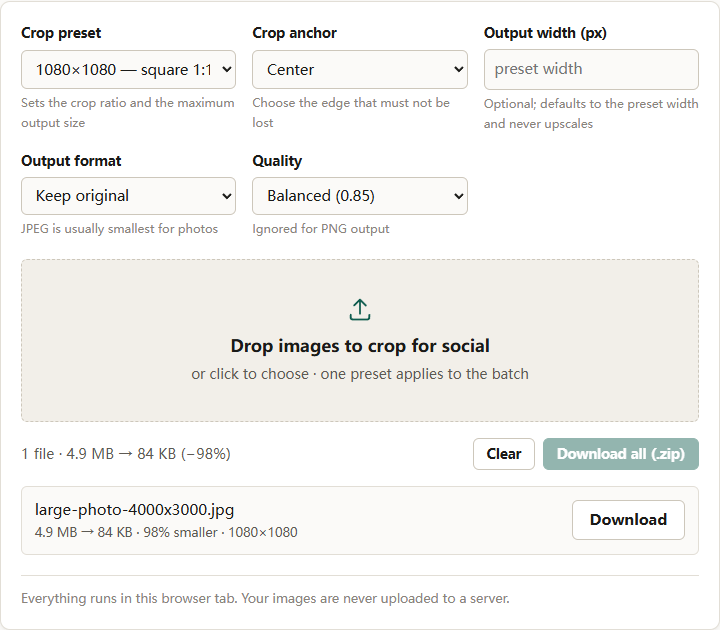
A profile photo is displayed as a circle in almost every surface. Upload a square image and center the face or mark; the circular mask removes the corners. A logo that fills the square edge to edge will lose its outer strokes.
For a person, the face should occupy a comfortable portion of the frame, with some space above the head. For a company, the mark should sit inside a generous margin so it reads at thumbnail size in comments and search results.
The exact recommended upload dimension and maximum file size are published by LinkedIn and have changed over time. Confirm them on the current help page before a brand refresh rather than reusing a number from an old template.
Banners and covers
The personal banner is a wide strip behind the profile photo. On desktop, the photo sits at the lower left and covers part of the banner. On mobile, the crop is narrower and the overlap is larger. A design that puts the job title at the far left will lose it behind the avatar.
Treat the banner as three zones:
- Center: the only area that survives every crop. Put the name, role, or one short line here.
- Right side: usually visible on desktop, often trimmed on mobile. Suitable for secondary information.
- Lower left: occupied by the profile photo. Keep it clear.
The company page cover has a similar problem with the logo and page name. Keep the message centered and leave the lower-left quadrant quiet.
Exact banner dimensions differ between the personal and company versions, and the mobile crop is not published as a pixel value. Design for the safe center and let the edges be expendable. Confirm the current upload size for each placement on LinkedIn’s help page.
Feed images
LinkedIn’s feed supports more than one ratio. Landscape images around 1.91:1 fill the card width without much cropping. Square images take more vertical space. Vertical 4:5 images are also supported and occupy more of the viewport on mobile.
The feed is not a fixed canvas. The same upload may appear at different crops in the feed, in the expanded viewer, and in a repost. Compose for the ratio you choose, then keep the subject and any essential text inside the central area.
A practical approach:
- Landscape 1.91:1 for link-style announcements, screenshots, and diagrams that read left to right.
- Square 1:1 for quotes, simple graphics, and carousels where consistency matters.
- Portrait 4:5 for people, events, and anything that benefits from vertical space on a phone.
LinkedIn’s help page lists the ratios it currently supports and any recommended sizes; confirm it before committing a template.
Mixing all three in one campaign is fine, but each image should be composed for its own frame rather than cropped from a single master with no regard for the subject.
Link previews
When a URL is shared, LinkedIn generates a preview card from the page’s Open Graph metadata. The image is cropped to a wide frame close to 1.91:1, with the title and description below it. The crop for social tool has a link preview preset built for that shape; confirm the current minimum size on LinkedIn’s help page.
Two details matter more than the exact pixels:
- The crop is wide. Vertical artwork will lose its top and bottom. Put the key visual in the middle band.
- The preview is small. Text baked into the image at a small size becomes unreadable. Use a short, large headline or no text at all.
If the page has no Open Graph image, the platform may pull an arbitrary image from the page or show no image. Setting the metadata is part of the job, not an afterthought.
Formats, file size, and color
JPEG is the safe default for photographs. PNG is better for graphics with flat color, sharp text, or transparency, but it is larger. LinkedIn re-encodes uploads, so exporting at maximum quality does not preserve the file byte for byte; it only gives the platform a cleaner source.
sRGB is the correct color space. A wide-gamut export may shift when converted. Keep text large and contrast high, because the feed displays images at a fraction of their uploaded size.
Formats and file limits are provider rules. Confirm them before building a batch around a format the platform may not accept.
A repeatable export workflow
- Keep one high-resolution master per subject. Do not screenshot an existing post; that adds interface chrome and a generation of compression.
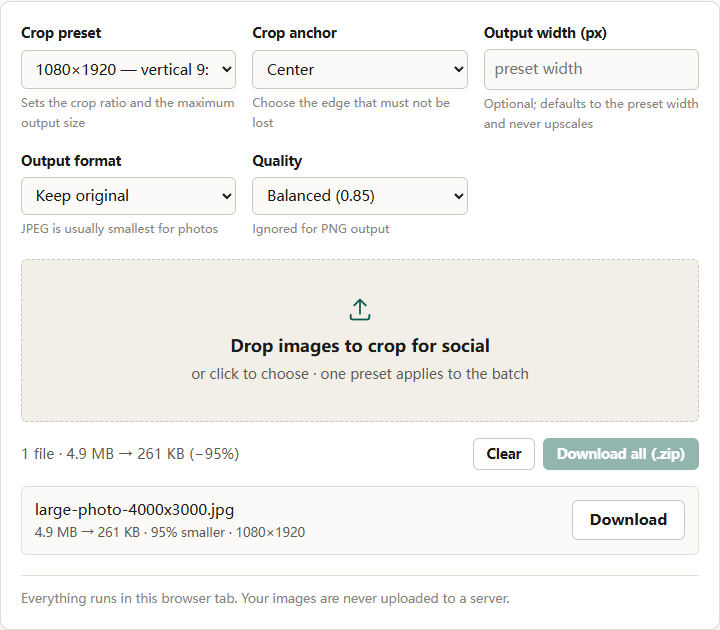
- Crop before resizing. Use the crop for social tool to set the ratio. Start with 1:1 for profile and logo, 4:5 or 1.91:1 for feed, and the link preview preset for link cards.
- Choose the anchor deliberately. Center works for symmetrical subjects. Top preserves a face with headroom. Bottom keeps a product base. The anchor only moves on the axis that has spare pixels.
- Set the output width only if you need a specific size. The tool never upscales; if the source crop is smaller than the requested width, the output keeps the smaller size.
- Export JPEG for photos, PNG for graphics. Use the converter if the source is in another format.
- Inspect at 100 percent. Check the crop at the size the feed will display, not just in the editor.
If you only need to change dimensions and the crop is already correct, the image resizer is the more direct tool.
Safe areas, summarized
| Placement | Shape to prepare | What must stay central | Exact values |
|---|---|---|---|
| Profile photo | Square, displayed as a circle | Face or logo mark | Verify current help page |
| Company logo | Square, small display size | Mark with margin | Verify current help page |
| Personal banner | Wide strip | Name or one line, center | Verify current help page |
| Company cover | Wide strip | Message, center; lower left clear | Verify current help page |
| Feed image | 1.91:1, 1:1, or 4:5 | Subject and text | Verify current recommendations |
| Link preview | Wide, about 1.91:1 | Key visual in the middle band | Verify current help page |
The short version
LinkedIn does not display the file you upload. It masks, crops, and re-encodes it. Prepare a square identity image that survives a circular mask, a wide banner with a quiet lower-left corner, and feed images composed for their ratio. Treat every pixel value and file limit as a current provider rule and confirm it at the source.
For the wider set of platform dimensions, see social media image sizes in 2026. For the format decision, see PNG vs WebP vs JPEG.