Web performance
Shrink Images for a Website Without Degrading Them
A 4000-pixel camera file lands in a 640-pixel slot, the browser scales it down, and the page loads slowly anyway. The image does not look better for the extra pixels; it looks the same, only heavier. The mistake is treating the file on the server and the picture painted on screen as the same object. They are measured in different units and chosen at different moments.
Two sizes, one decision
The stored size is measured in pixels and bytes. The painted size is measured in CSS pixels, which are then multiplied by the screen’s device pixel ratio. A phone with a ratio of 3 needs three device pixels for every CSS pixel, and a laptop with a ratio of 2 needs two.
That gives a simple rule for export width:
- For a standard-density screen, export at the CSS width.
- For a high-density screen, export at twice the CSS width.
- Beyond twice, the extra pixels are rarely visible at normal viewing distance and cost real bytes.
| Where the image appears | CSS width | Sensible export width |
|---|---|---|
| Article body image | 640 px | 1280 px |
| Card thumbnail | 320 px | 640 px |
| Hero or gallery image | 1600 px | 2000–2400 px |
| Full-width banner | viewport width | 2000 px ceiling |
The hero row is deliberately not doubled. A 3200-pixel hero is a large file for a gain most viewers will not see, and it punishes anyone on a slow connection.
Find the real display width first
Do not guess from the original photo. Open the page, right-click the image, and inspect it. The browser’s developer tools show the rendered width in CSS pixels, which is the number the layout actually gives the image after margins, columns, and responsive rules are applied.
If the site uses a responsive layout, the rendered width changes with the viewport. Measure at the widest breakpoint where the image appears and use that as the upper bound. An image that is 640 pixels wide on desktop and full width on mobile needs different treatment: either accept the desktop size or produce two files and let the browser choose.
Choose a format that survives the trip
For photographs, WebP is usually the smallest option at a comparable visual quality, and current browsers display it. JPEG remains the most compatible fallback. PNG is the right choice for screenshots, diagrams, logos, and anything with transparency or sharp text, but it is a poor choice for photographs because lossless storage of continuous tone is expensive.
The PNG vs WebP vs JPEG comparison covers the trade-offs in detail. For this workflow, the short version is: photograph to WebP, screenshot or transparent graphic to PNG, and JPEG when a downstream system demands the extension.
Avoid converting a JPEG to PNG in the hope of improving quality. The damage from the original JPEG encode is already baked into the pixels; PNG only preserves it in a larger container.
Shrink an image for the web, step by step
- Measure the rendered width as described above, then double it for high-density screens.
- Open the image resizer.
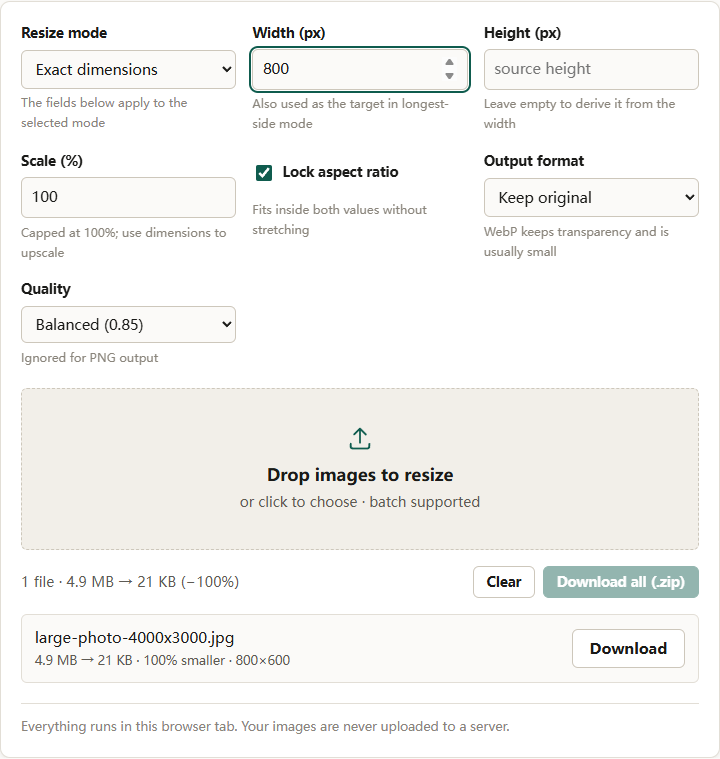
- Set Resize mode to Longest side for a landscape image, or Exact dimensions when both edges are fixed by the layout. In longest-side mode, put the target in Width (px).
- Keep Lock aspect ratio checked unless the layout genuinely requires a different shape. If it does, crop first; forcing the ratio stretches the picture.
- Set Output format to WebP and Quality to Balanced (0.85). High (0.92) is reasonable for a portfolio image; Small file (0.70) is for thumbnails.
- Add the files and download. Each row reports the final dimensions.
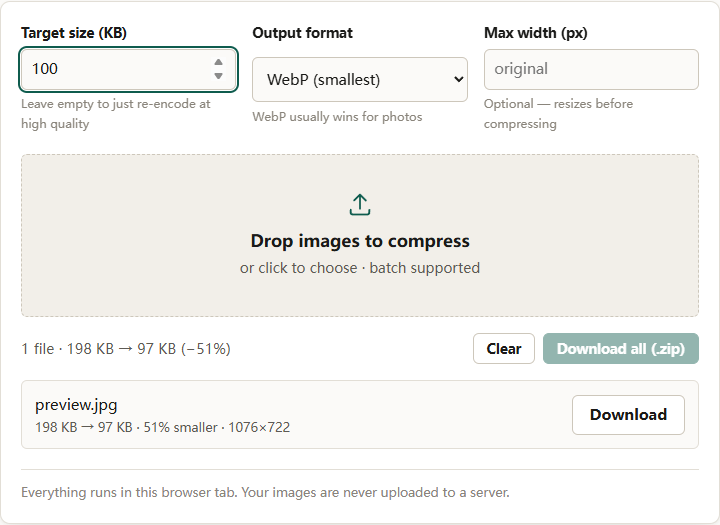
If the page has a strict byte budget, run the resized files through the image compressor with a Target size (KB) set and Max width (px) left empty. Sizing twice would shrink the image more than intended.
There is no substitute for opening the exported file on the screen where it will be viewed. If it looks soft there, check three things in order: the source was smaller than the export width, the quality setting was too low, or the layout is stretching the image wider than the width you exported.
The two mistakes that actually degrade an image
Most “loss of quality” on the web comes from two avoidable operations, not from compression itself.
Upscaling. Resizing a 900-pixel image to 1800 pixels adds pixels without adding information. The result is softer than the original because the resampler is interpolating between pixels that already exist. Export at or below the source dimensions whenever possible.
Compressing twice. Every JPEG or lossy WebP encode is permanent. Resizing an already compressed image and saving it again at low quality stacks a second generation of loss. Start from the original, or from the highest-quality copy you still have, and do all the sizing in one pass.
A third, subtler mistake is exporting at high quality and then letting a CMS or CDN re-compress the file. The final bytes are outside your control, so a modest quality setting and a correct pixel size are more reliable than an enormous “master” that the pipeline will crush anyway.
Help the browser choose the right file
Serving one large image to every visitor wastes bandwidth on phones; serving one small image underserves high-density screens. The standard fix is a srcset attribute listing two or three widths, plus a sizes value that describes the layout. The browser picks the smallest candidate that covers the rendered size and pixel ratio.
The tool here produces one file per run, so a 1x and 2x pair means two runs with different widths. Name them clearly, for example with -640 and -1280 suffixes, then wire them into the markup yourself. There is no automatic responsive export in the tool.
Two markup details are worth the effort:
- Set
widthandheightattributes on the image element so the browser reserves space before the file loads. This prevents the layout from jumping as images arrive. - Add
loading="lazy"to images below the fold. It delays the request until the image is near the viewport, which improves the initial load without changing the file itself.
Do not strip what you still need
Re-encoding in the browser removes EXIF and most embedded metadata, including camera and location data. For a public website that is usually desirable: it reduces the file and avoids leaking where a photo was taken. It also means the exported file is not an archival copy. Keep the original separately.
Color profiles are another casualty. If a photograph was shot in a wide gamut and the export looks duller than expected, the conversion pipeline can be the cause. For ordinary sRGB images the difference is negligible.
A short checklist
- Measure the rendered width, then export at 1x or 2x, not at the camera resolution.
- Use WebP for photographs, PNG for screenshots and transparency.
- Do all resizing and compressing in one pass from the original.
- Never upscale to fill a slot; use a larger source or accept the softer result.
- Check the busiest area at 100 percent before publishing.
- Add a second, smaller export for
srcsetwhen the page serves both phones and large screens. - Set
widthandheightso the layout does not jump.
The goal is not the smallest possible file. It is the smallest file that looks correct at the size and density where it is displayed, which is a much easier target to hit once the display width is a measured number rather than a guess.