Privacy
Remove Location and Camera Data Before Sharing Photos
You post a photo of your kitchen and a stranger replies with the name of your street. The image shows a countertop and a window; the coordinates were underneath it, in the file. Phone cameras write GPS, timestamps, and device details into EXIF, and removing them takes a deliberate step.
The symptom
You post a photo taken at home and later realize the file carried coordinates. A marketplace buyer asks why the listing shows a neighborhood. A client sends a photo and you need to return a copy without the camera’s location. In each case the image looks unchanged; the metadata travels underneath it.
The causes, ranked
1. You shared the camera original
The original file from a phone is the one most likely to contain GPS. Sending it by email attachment, AirDrop, a cloud link, or a direct upload preserves the bytes, including the metadata. Resizing it in a chat app may or may not remove the data, and the behavior differs by app and by whether you chose original or compressed.
2. An editor preserved the metadata
Cropping a photo does not necessarily remove EXIF. Many desktop editors rewrite the image data and copy the metadata block forward. A cropped file can still contain the original coordinates. The same is true of some phone editors. Do not assume that an edit equals a strip.
3. The destination keeps metadata
Some platforms strip metadata on upload; some preserve it; some preserve it for some file types and not others. The behavior can change over time and can differ between the web uploader and the mobile app. Treat any claim about a specific platform as something to verify against its current documentation and a test upload.
4. A cloud service shares the original
A shared album or a file link can serve the original file rather than a preview. The recipient downloads the same metadata you uploaded. Check what the share link actually returns.
5. The screenshot still has metadata
A screenshot usually lacks camera GPS because it was not taken by the camera, but usually is not always. Screenshots can carry other metadata, and a screenshot of a photo can preserve visible location clues even when the EXIF is gone.
What to check first
Check the exact file you plan to share, not the one in your camera roll. Run a metadata reader such as exiftool on that copy and look for the GPS group. If the file has no GPS, the rest of the EXIF may still include device and timestamp data you would rather not publish.
If a metadata reader is not available, a phone’s photo details panel often shows a map or coordinates, and a desktop file properties dialog may show GPS on the Details tab. Neither is as complete as a dedicated reader, but either can confirm that location data exists.
What to change
Re-encode the file through a tool that writes new pixels
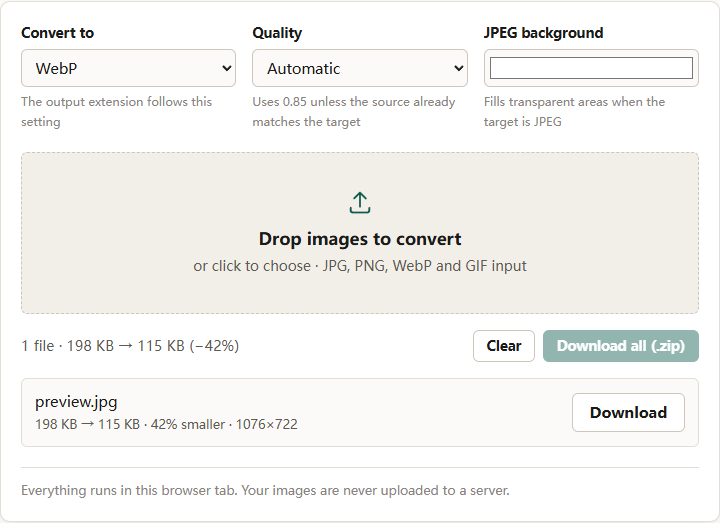
The converter decodes the image, draws it to a canvas, and encodes a new file. The new file has no EXIF block from the source. Choose Convert to WebP or PNG to force a format change, or choose JPEG and set an explicit Quality value.
That last detail matters. When the source format already matches the target and Quality is left on Automatic, the converter returns the original bytes with a new filename. That is a sensible default for avoiding unnecessary quality loss, but it also means the metadata is still there. Set a quality value when the goal is to strip metadata.
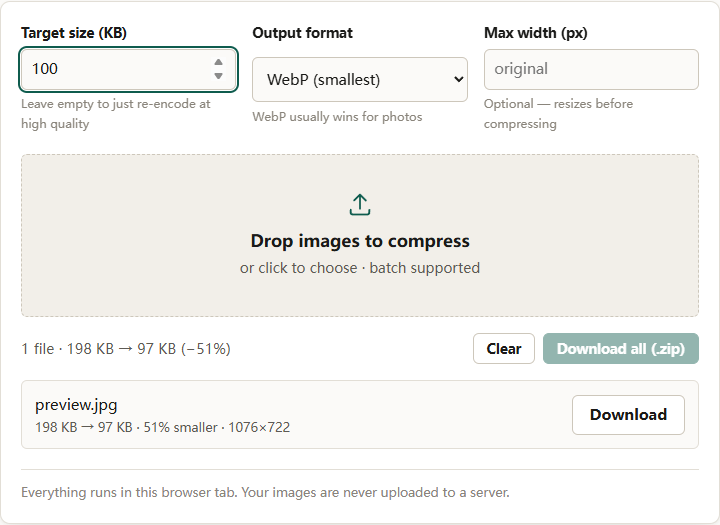
The image resizer also re-encodes when it changes dimensions, and the compressor re-encodes when it processes a file. The compressor has one trap: when it decides a file is already optimal and returns the original, no new pixels are written and the metadata remains. Check whether the output size or dimensions actually changed. If the bytes are identical, assume nothing was stripped.
Use a format change when you want certainty
Converting JPEG to WebP or PNG guarantees a new encode because the target format differs. That is the simplest reliable path on this site. If the destination requires JPEG, do not convert JPEG to WebP and back; that is a pointless generation loss. Instead, set an explicit Quality in the JPEG conversion and verify with exiftool.
Remove only the location, if that is the actual goal
A full re-encode removes everything: camera, lens, exposure, capture time, copyright, and GPS. If you need to keep the camera settings, use a metadata tool that can delete selected tags on a copy. The exact syntax belongs to that tool’s documentation; the principle is to write a new file and leave the original untouched.
Check the image itself
Metadata is not the only way a photo reveals a place. Street signs, house numbers, shop names, reflections, a distinctive view, and the filename can all identify a location. Stripping EXIF does not blur a street sign. If the concern is privacy rather than file hygiene, inspect the pixels too.
What the export does to orientation
Re-encoding applies the EXIF orientation to the pixels and then drops the tag. The result is upright in every viewer, including ones that ignore orientation. That is usually a benefit, but it means the exported copy is not a byte-identical archive. Keep the original if you need the full metadata record. The EXIF rotation guide explains the trade-off.
Verify before you publish
Run the metadata check again on the exported file. Confirm that the GPS group is gone and that the fields you intended to keep are still present. Then check the destination: upload the file to a test post or a private page and inspect what is actually served. A platform preview is not proof that the original was stripped.
The short version
Assume a phone original contains location data until you have checked it. Re-encode the exact file you plan to share, using a format change or an explicit quality value so the tool does not return the original untouched. Verify with a metadata reader, and remember that the image content can reveal a place even when the EXIF is gone.