Formats
Why Your PNG Is So Large, and What to Do Instead
A screenshot of a settings menu should not weigh several megabytes. When it does, the file is not corrupt and the editor did not fail. PNG is lossless, and lossless means every pixel gets stored, including the sensor noise in a photograph. The fix starts with why the image is PNG in the first place.
What PNG spends bytes on
PNG stores pixels losslessly. It applies filters to rows and then compresses the result with DEFLATE, the same general-purpose algorithm used in zip files. There is no perceptual step that discards detail the eye will not notice. A photographic pixel with slight noise is close to random data, and random data does not compress well. Flat areas and repeated patterns do, which is why a screenshot of a menu can be small while a screenshot of a photograph is large.
The format also stores an alpha channel when transparency is present. That is another byte per pixel before compression, and it can interfere with the filters that make PNG efficient.
The causes, ranked
1. The content is photographic
This is the largest factor. A photo has gradients, texture, and sensor noise in every channel. PNG must preserve all of it. A JPEG or WebP encoder can drop detail that is hard to see, which is why the same image can be a fraction of the size with no obvious difference at normal viewing distance.
2. The pixel count is high
File size scales with area. Doubling width and height quadruples the pixels. A 24-megapixel photo saved as PNG is not a web asset; it is an archive. The 40-megapixel limit on this site exists because decoding that much data can exhaust a phone’s memory, not because the format is being punished.
3. The color type and bit depth are heavier than needed
An 8-bit RGBA image uses four channels: red, green, blue, and alpha. A 16-bit image doubles that. Indexed-color PNG can be far smaller for flat art with a limited palette, but it cannot represent smooth photographic gradients. Whether a browser canvas writes indexed color or full RGBA depends on the encoder and the browser build, so inspect the output rather than assuming.
4. Transparency is present but not needed
An alpha channel costs bytes and can make compression less effective. If the image will sit on a known solid background, the alpha channel is dead weight. Flattening it deliberately, onto the color you actually want, is smaller and more predictable than letting a later tool guess.
5. Ancillary chunks and metadata
PNG can carry color profiles, text chunks, and other ancillary data. These are usually minor compared with the pixel data, but they are not zero. A file that has passed through several editors can accumulate chunks. This is a reason to inspect, not the first thing to fix.
6. The compression level is low
PNG encoders expose a compression level, usually 0 through 9. It changes how hard the encoder works, not how much detail is kept; the pixels are identical. The difference in size is real but modest compared with changing the content or the dimensions. Do not expect a maximum compression setting to rescue a photographic PNG.
One thing that is not a cause: the quality slider. PNG has no quality setting. If an interface offers one for PNG output, it is either ignored or the file is being converted to another format behind the label.
What to check first
Start with dimensions and content, not with the file’s metadata. A 4000-pixel photographic PNG is explained by causes 1 and 2 before you look at anything else. Then check whether transparency is actually used, and finally inspect the chunks.
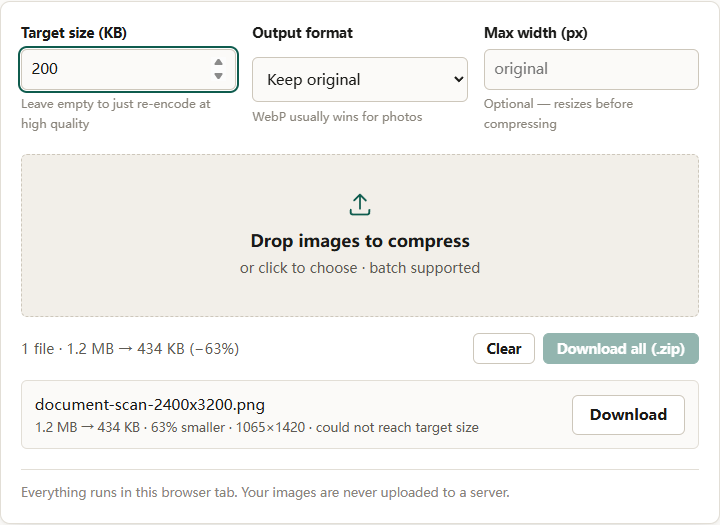
In our own run, a 1.2 MB 2400×3200 PNG given a 200 KB target came out at 434 KB and 1065×1420 after 329 ms, and the row still reported could not reach target size. The tool had reduced the dimensions because there was no quality setting to turn down.
On Windows, the file properties dialog gives dimensions and size. Alpha and chunk details need an inspection tool; ImageMagick and pngcheck are two options, and both are usually run from Git Bash.
What to change
The choice is not permanent, and it is not the same for every image. The PNG vs WebP vs JPEG comparison explains where each format earns its place.
If the image is a photograph
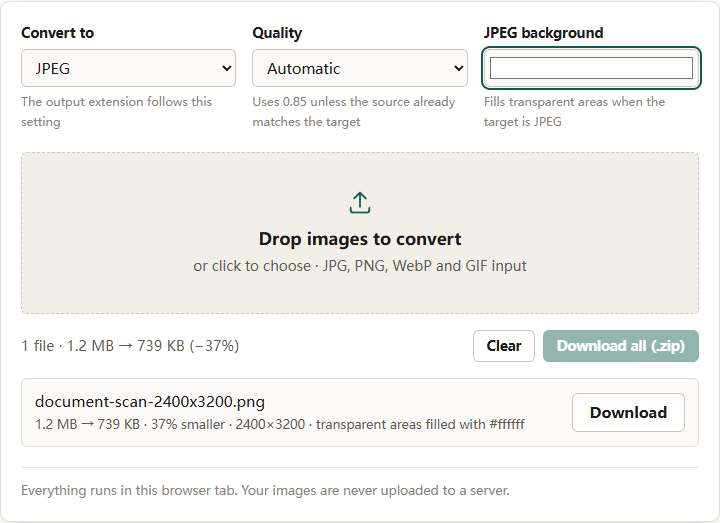
Convert it. The converter writes WebP, JPEG, or PNG. Choose Convert to WebP, set Quality to Balanced (0.82), and compare the result at 100 percent. WebP usually preserves more detail than JPEG at the same byte size, and it keeps transparency. As of October 2026, caniuse.com reports 97.18% global browser support for WebP, with full support since Chrome 32, Edge 18, Safari 16.0, and Firefox 65. Some older desktop viewers may still refuse a downloaded WebP, so test the destination when that matters. If you need JPEG for compatibility, set the JPEG background control to the background colour that should replace transparent areas.
For a byte limit, use the compressor instead. Set Output format to WebP, enter Target size (KB), and optionally cap the source with Max width. The compressor searches quality and then reduces dimensions if the target cannot be reached. If it reports could not reach target size, the image and the limit are incompatible at a useful quality.
If the image is a screenshot or diagram
PNG may be the right format. Sharp text and flat color are what PNG handles well. The problem is usually dimensions, not the codec. Use the compressor with Max width set to the widest size the image is displayed at, or resize first with the image resizer. Keep Output format on PNG if the destination needs lossless pixels; accept that the tool can only reduce dimensions to hit a byte target.
Do not convert a text screenshot to JPEG at low quality to save bytes. The artifacts concentrate around exactly the edges that carry meaning.
If the image is a logo with transparency
WebP is usually the better delivery format. It keeps the alpha channel and is generally smaller than PNG. If the logo will only ever appear on one solid background, flattening it onto that color and using JPEG is defensible; choose the background color deliberately rather than accepting a default.
If the image must stay PNG
Reduce dimensions, remove unused alpha, and avoid 16-bit output for web delivery. Do not re-save repeatedly hoping the size will fall. PNG re-saving does not add generation loss the way JPEG does, but it also does not remove pixels.
When PNG is the correct answer
Use PNG for interface elements, line art, charts, screenshots with text, images that need transparency, and any file that must survive an exact pixel-for-pixel round trip. Use it as an archive format when you cannot accept lossy compression. Those are real requirements, and they justify the size.
The mistake is using PNG as a default for every image because it looks better. For photographs, the visible difference at normal size is often negligible while the byte difference is not.
The short version
PNG is large because it refuses to throw anything away. Photographic content and high pixel counts are the main reasons a particular file is large. Keep PNG for text, flat art, and transparency; move photographs to WebP or JPEG; and when a PNG must stay, reduce its dimensions instead of looking for a quality knob that does not exist.