Compression
How to Compress a JPEG to 200 KB
The form says 200 KB, and the photo you want to upload is a 12-megapixel phone shot. Those two numbers are not on speaking terms. Spread 200 KB across 12 million pixels and each pixel gets about 0.14 bits; spread the same bytes across a 1600 × 1200 copy and each gets about 0.85. Nothing about the ceiling changed, only the number of pixels it has to cover.
Do the arithmetic before you touch a setting
A byte limit is a budget, and a JPEG spends that budget across every pixel. Divide the budget by the pixel count and you get bits per pixel, a rough measure of how much description the encoder can keep.
- 200 KB is 204,800 bytes, or 1,638,400 bits.
- A 4000 × 3000 photo contains 12 million pixels. That is about 0.14 bits per pixel.
- A 1600 × 1200 photo contains 1.92 million pixels. That is about 0.85 bits per pixel.
Six times the budget per pixel is why the smaller copy usually looks better at the same byte count. The encoder is not better; it has fewer pixels to describe. That is also why the most effective control here is not a quality slider but Max width (px).
The two levers the compressor can pull
JPEG compression exposes two controls that matter here: encoder quality and pixel dimensions.
Quality decides how aggressively the encoder quantizes the frequency data in each 8 × 8 block. Lower quality discards more subtle variation, which is where file size lives, and eventually produces blocking in smooth areas and ringing around sharp edges.
Dimensions decide how many blocks exist in the first place. Halving width and height leaves one quarter of the pixels, so the budget per pixel roughly quadruples without changing any quality setting.
Most browser JPEG encoders also apply chroma subsampling, which stores color detail at lower resolution than brightness. This tool does not expose it, so treat it as a fixed property of the encoder.
Compress a JPEG to 200 KB, step by step
The compressor works backward from the number you enter. It searches quality first and falls back to dimensions only when quality alone cannot reach the target.
- Open the image compressor. The file is decoded and re-encoded in the tab; nothing is uploaded.
- Enter 190 in Target size (KB). The headroom matters because “200 KB” can mean 200 × 1024 bytes or 200,000 bytes, and a strict validator rejects the larger reading.
- Set Output format to JPEG if the destination checks the extension, or leave it on Keep original. WebP produces a smaller file, but some forms reject the extension even when the bytes are valid.
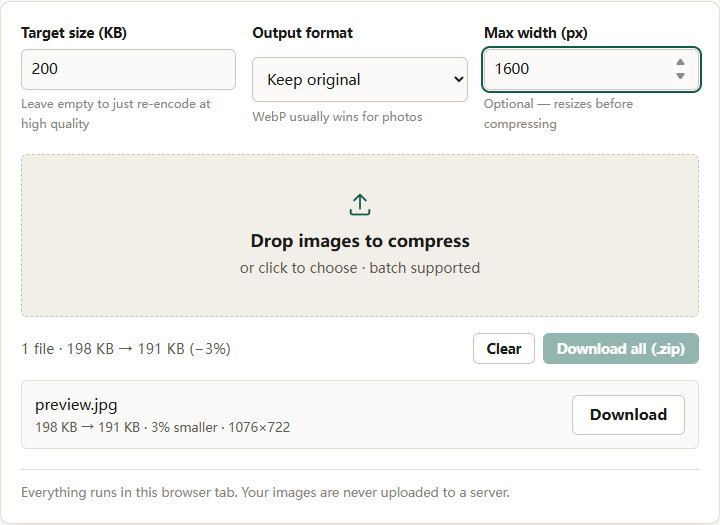
- Enter a value in Max width (px) if you know the display size. A width of 1600 is a sensible ceiling for a screen-only photo; leave it empty when the form specifies dimensions.
- Add the file by dropping it on the zone, clicking the zone, or pressing Ctrl+V to paste a screenshot. Batches work too, and two files are processed at a time.
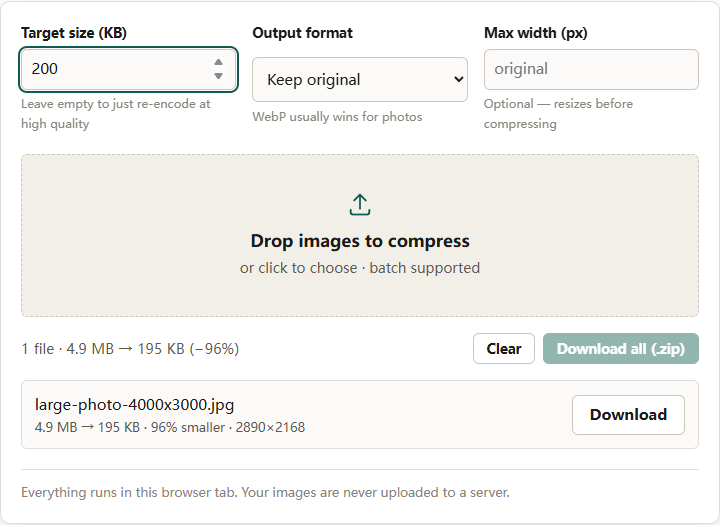
- Download the row, or use Download all (.zip) for a batch. Each row reports the size before and after plus the final dimensions, so you can see whether the tool had to downscale.
The 50 MB and 40-megapixel caps keep a phone browser from running out of memory while decoding. A larger file needs a smaller copy made elsewhere first.
What happens when 200 KB cannot be reached
The search lowers quality to a floor of 0.3. If the result is still over target, the compressor reduces the longest side by 15 percent and encodes again, for up to six attempts. If it still misses, the row reads could not reach target size.
At 200 KB the fallback path triggers less often than at 100 KB. A 1600-pixel photograph usually has enough headroom to reach the target on quality alone; large dimensions and noisy content, such as foliage or a crowded street, force the downscale.
Will 200 KB look acceptable at your dimensions?
The answer depends on pixel count and content. These are rules of thumb for a typical photograph, not measurements.
| Long side | Pixels | What 200 KB usually looks like |
|---|---|---|
| 1600 px | about 1.9 MP at 4:3 | Clean at normal viewing size; good for forms and profiles |
| 2000 px | about 3 MP at 4:3 | Still solid on a screen; slight softening in fine texture when zoomed |
| 3000 px | about 6.8 MP at 4:3 | Blocking in gradients; acceptable at normal size |
| 4000 px | 12 MP at 4:3 | Clearly degraded; the encoder is spread too thin |
In one measured run on this site, a 4.9 MB 4000×3000 JPEG set to a 200 KB target came out at 195 KB at 2890×2168, in 1.9 seconds. The byte target was met, but only after the long side dropped below 3000 pixels, and the dimensions line is where that trade becomes visible.
If a form demands 200 KB and also demands a large minimum dimension, the two requirements may be incompatible. Test one file before processing a batch, and be prepared to submit a different source image.
Judge the output at 100 percent, not at thumbnail size
The results panel tells you bytes and dimensions. It cannot tell you whether the image still reads well. Open the downloaded file and zoom to 100 percent before you upload it.
Look for three things:
- Blocking in smooth gradients such as skies and blurred backgrounds.
- Ringing around high-contrast edges, which looks like a faint halo.
- Color banding, where a gradual transition becomes a series of flat steps.
Faces and text survive compression better than foliage, hair, and fabric, so check the busiest part of the frame. An artifact that is obvious at 100 percent but invisible at the size the image will actually be displayed does not matter. Judge at display size, then confirm at 100 percent that nothing embarrassing is hiding there.
What the re-encode costs besides quality
Compressing in the browser is a fresh encode, not a metadata-preserving edit. Three consequences matter before you overwrite anything.
- Camera metadata is dropped. EXIF, including capture date, camera model, and GPS coordinates, does not survive. The orientation tag is applied to the pixels first, so the image arrives upright even though the tag is gone.
- Transparency is flattened. JPEG has no alpha channel. The compressor does not offer a background color, so if the fill color matters, convert first with the format converter, which lets you choose the color that replaces transparent pixels.
- Every pass adds loss. Compressing an already compressed JPEG at low quality stacks a second generation of damage. Start from the original whenever it still exists.
For how much quality each format gives up, see lossless vs lossy compression; for the tighter version of this workflow, the 100 KB guide covers the cases where 200 KB is not the number on the form.
A short checklist
- Aim for 190 KB, not exactly 200, to survive rounding differences.
- Set Max width (px) before you touch quality; dimensions move the number further.
- Choose JPEG when the destination is strict about extensions.
- Inspect the busiest area of the image at 100 percent.
- Keep the original. The compressed copy is for the upload form, not your archive.
- If the row says the target was unreachable, stop lowering the number. Resize a copy with the image resizer and compress that.
The short version: 200 KB is comfortable for a photo that will be viewed on a screen at 1600 pixels wide, and hostile to a 12-megapixel original. Decide the dimensions first and the byte target stops being difficult.