Formats
PNG to JPG: What Happens to Transparency
Drop a transparent logo into a converter, ask for JPEG, and the background turns white, or black, depending on the tool. Neither result is the converter inventing a color. A PNG’s transparent pixels still carry color values plus a separate coverage value; JPEG can store color but has nowhere to put coverage. The conversion has to resolve every transparent pixel into a solid one, and that decision is what you are actually making.
What PNG stores that JPEG cannot
PNG stores each pixel as red, green, blue, and alpha. Alpha is a coverage value: zero means fully transparent, the maximum means fully opaque, and everything between is partial. That partial range is what makes edges look smooth when a logo is placed over a background, because the boundary pixels blend rather than stair-step.
JPEG stores brightness and two color-difference channels. There is no fourth channel and no standard place to put one. Any transparency in the source must be resolved before encoding, by mixing the image with a solid color. That process is called compositing, and the color is called the matte.
Compositing decides the result
For each pixel, the output is a weighted mix:
result = source × alpha + matte × (1 − alpha)
A fully opaque pixel ignores the matte. A fully transparent pixel becomes the matte exactly. A half-transparent pixel becomes a 50/50 blend. This is why the edge of a logo is the part that reveals a bad matte: those boundary pixels are partially transparent, so they pick up a visible tint from whatever color was chosen.
If the matte matches the page the image will sit on, the edge disappears. If it does not, you get a light or dark fringe around the mark, often described as a halo. The fringe is not a JPEG artifact; it is the compositing decision showing through.
Why transparent areas sometimes turn black
Some tools discard the alpha channel and encode whatever color values happen to sit underneath the transparent pixels. Those values are frequently black or undefined, so a transparent background comes out as a black rectangle. Other tools deliberately composite onto black when no background is specified.
The result depends entirely on the tool, which is why “PNG to JPG turned my background black” is a common report and “it turned white” is equally common. The compressor on this site does not expose a background control, so when the fill color matters, convert first with the format converter. It fills the canvas with your chosen color before drawing the image, so semi-transparent edges blend into that color instead of producing a halo.
Convert a PNG to JPG with a white background
- Open the image converter. Files are decoded and encoded in the tab; nothing is uploaded.
- Set Convert to to JPEG.
- Choose Quality. Automatic uses 0.85 unless the source already matches the target. High (0.92) is safer for a logo with fine edges; Balanced (0.82) is fine for a photograph.
- Click the JPEG background swatch. It defaults to white (
#ffffff). Leave it white for a document, a white website, or a printed page. - Add the files. The tool reads the real source format from the file header, so a PNG named with a
.jpgextension is still handled correctly. - Download each result, or use the batch download for a set.
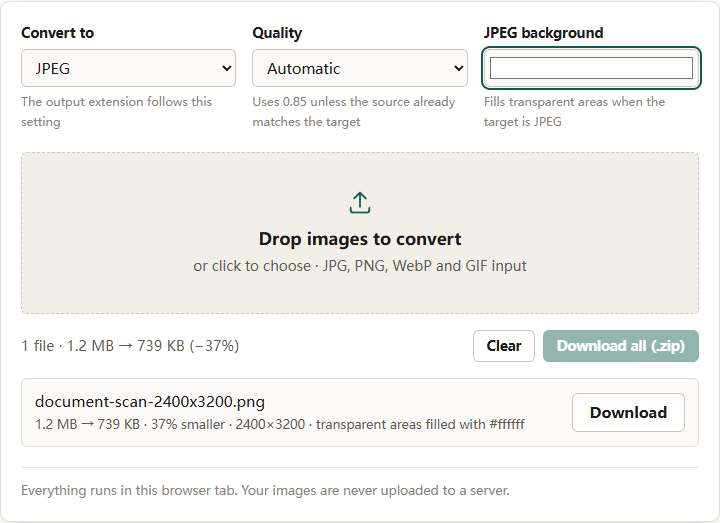
The JPEG background field has no effect when the target is PNG or WebP. Those formats keep transparency, so there is nothing to fill. Quality is likewise ignored for PNG output, because PNG is lossless.
The same-format shortcut
If the detected source is already JPEG, the target is JPEG, and Quality is left on Automatic, the converter returns the original bytes under a new name. That avoids a pointless generation of loss. Choose an explicit quality value if you really want a same-format re-encode.
Pick the matte for the destination, not for the file
White is the right default for documents, email, and most light interfaces. It is a bad choice for a logo that will sit on a dark navigation bar, where a white box will be obvious even if the edges are clean.
Ask where the image will be displayed, then match that color:
- White for invoices, forms, printed pages, and light websites.
- The page background color for a specific site or slide deck. Use the same hex value, not an approximation.
- Brand color when the image will always sit on a branded surface.
- Dark gray or black for dark themes, with the caveat that dark mattes make light logos look heavier.
If the image will appear on several backgrounds, there is no single correct matte. Keep it as PNG or WebP. A JPEG with a baked-in background is a one-destination asset.
Check the edges at 100 percent
A converted logo can look fine at thumbnail size and wrong when enlarged. Zoom to 100 percent and inspect the boundary against the intended background before publishing.
Look for a light rim on a dark page or a dark rim on a light page. That is the partially transparent edge blending with a matte that does not match. Also look for ringing, the faint ripple JPEG produces around sharp high-contrast edges. A white matte often hides ringing on a white page; on a colored page it becomes visible.
In one measured run on this site, a 1.2 MB 2400×3200 PNG converted to JPEG with the white background came out at 739 KB at the same 2400×3200, and the row recorded that transparent areas were filled with #ffffff; the conversion took 231 ms. That confirms the matte was applied at full resolution, but not whether the edge reads cleanly, which still has to be judged at full zoom against the real background.
When JPEG is the wrong output
JPEG is a poor container for sharp graphics. Its compression works by discarding fine detail, and hard edges are exactly the kind of detail it struggles with. A logo, a chart, a screenshot of text, or an icon with thin strokes will usually look worse as JPEG and may even be larger than the PNG.
Keep PNG or WebP when:
- The image needs transparency on more than one background.
- It contains small text or thin lines that must stay crisp.
- It will be edited and re-exported repeatedly.
- It is a screenshot or diagram with large flat areas.
Use JPEG when the image is photographic, the background is known, and compatibility matters more than edge fidelity. The PNG vs WebP vs JPEG comparison covers the format trade-offs in more detail.
What else changes in the conversion
Converting redraws the pixels, so EXIF orientation is applied and most embedded metadata is dropped. That removes camera and location data, which is usually good for privacy and bad for archiving. Animated GIFs are decoded as a still image, so only the first frame survives; that limitation applies to every target format here.
Re-encoding is also lossy for JPEG. Converting a PNG to JPEG and back to PNG does not restore the original; the first JPEG encode has already discarded detail. Keep the PNG source if you may need it again.
A short checklist
- Decide the matte before converting, based on where the image will appear.
- Use the JPEG background swatch rather than accepting a default you have not checked.
- Inspect the edges at 100 percent against the real background.
- Keep PNG or WebP when the image needs to work on several backgrounds.
- Expect metadata to be stripped and animation to be lost.
- Keep the original PNG; the JPEG is a derivative.
The summary: transparency is coverage, not color, and JPEG forces that coverage to be resolved into a solid matte. Choosing the matte deliberately is the difference between an image that looks native to its page and one with a visible box around it.
For a closer look at why different tools produce black instead of white, see why a JPEG gets a black background.