Formats
Why Transparent Areas Turn Black in JPEG
A logo that sat cleanly on a checkerboard suddenly has a black rectangle behind it. Nothing corrupted the file. JPEG has no alpha channel, so those transparent pixels had to become a color, and the software picked black before you had a say.
The symptom
A logo that looked clean on a checkerboard background now sits in a black rectangle. The same file may show a white box in another application, or no box at all on a dark web page. Printing can reveal a black block that was invisible on screen. The file is not corrupted; the transparency had to go somewhere.
The causes, ranked
1. The output is JPEG
This is the root cause in almost every case. JPEG cannot store an alpha channel. The encoder must composite the image onto an opaque background before writing pixels. If no background is specified, the encoder uses whatever its default is. Many pipelines initialize to zero, which is black. Others default to white. There is no alpha left in the output to tell a viewer what was intended.
2. The hidden color under transparent pixels is black
PNG stores a color for every pixel even when alpha is zero. A fully transparent pixel can still contain black, white, or any other RGB value. A converter that composites correctly uses the alpha to blend and ignores the hidden color. A converter that simply drops the alpha channel exposes it. This is why the same transparent PNG can flatten to black in one tool and white in another. The black was in the file all along, hidden behind zero alpha.
3. You are looking at a preview, not the file
Some viewers show transparency as a checkerboard, some as black, some as white. A dark application theme can make a transparent PNG look like it has a black background when the file is still transparent. Before changing anything, place the file on a white page and a dark page, or open it in an editor that displays a checkerboard.
4. Semi-transparent edges were flattened against the wrong color
Anti-aliased logo edges have partial alpha. When they are composited onto black, they darken into a fringe. The fringe can look like a shadow or a halo and is often mistaken for a separate problem. The fix is the same: choose the background color deliberately.
5. A color profile or CMYK conversion darkened the image
This can make the whole image darker, but it does not specifically target transparent areas. If only the former transparent region is black, the cause is one of the first four. Do not chase color management until you have confirmed that.
What to check first
Confirm two things: the output file is actually JPEG, and the source actually has transparency. Then check what color sits under the transparent pixels.
A file extension is not proof of format; rename a PNG to JPG and it is still a PNG. Open the file’s properties or use a tool that reads the header. For the source alpha, open it in an editor that shows a checkerboard, or inspect the alpha channel directly.
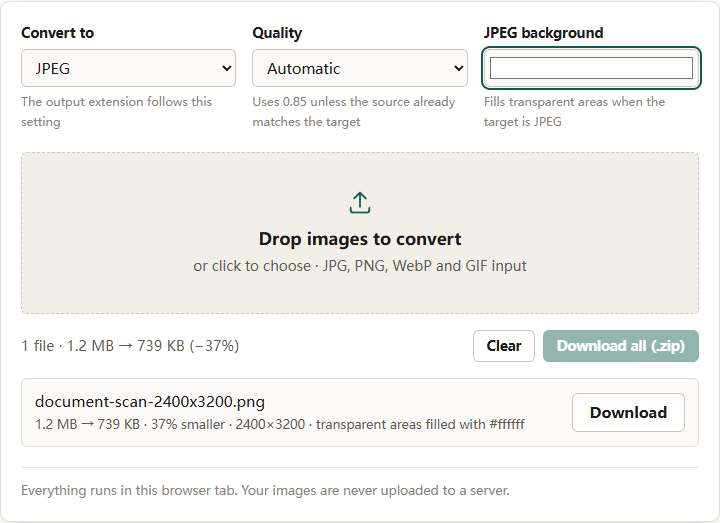
In our run, a 1.2 MB 2400×3200 PNG converted to JPEG with the background left at white produced a 739 KB file at the same 2400×3200 pixels in 231 ms, and the row reported transparent areas filled with #ffffff. The transparent pixels became white because white was the selected fill, not because the PNG had been hiding a white background.
If the source’s alpha channel shows a fully transparent corner and its hidden color is black, cause 2 is likely. If the alpha channel is correct but the JPEG corner is black, the converter chose black as its background.
What to change
If JPEG is required, choose the background colour
The converter composites transparency before drawing the image, using the color in the JPEG background control. Set it to the exact color of the page, email, or document where the image will appear. White is the common default and is right for a white page. A dark header needs the matching dark value, not white.
The control is a color picker, not a preset list. Sample the destination background with a color picker and enter the same hex value. If the image will sit on a gradient or a photograph, no single fill will work; keep the file as PNG or WebP instead.
Set Quality deliberately as well. The fill happens before encoding, so semi-transparent edges blend into the chosen color rather than producing a halo. A low quality setting can add blocking around the edges, which makes the transition more visible.
If the image must work on several backgrounds, keep alpha
PNG and WebP both support transparency. WebP is usually smaller and is the better delivery format when the destination accepts it. The converter’s Convert to menu includes both. This is the only fix that survives a redesign, a dark mode, or a partner site with a different background. The PNG size guide explains why that format is larger in the first place; the transparency is worth the bytes when the image has to sit on more than one surface.
If you are cropping a logo for social media
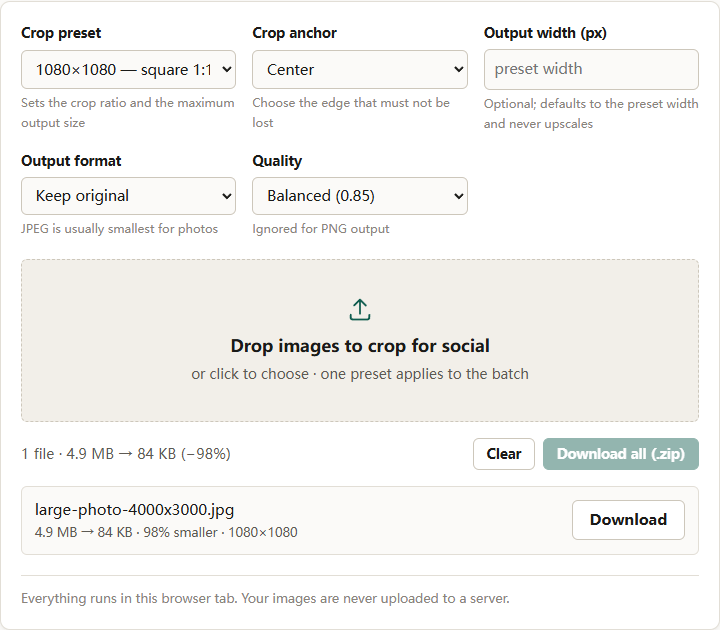
The social crop tool also has an Output format menu. Choosing JPEG there flattens transparency, and the result will have an opaque background. For a logo or a graphic with transparent edges, choose PNG or WebP in that menu instead. If you must use JPEG, check the result on the destination background before publishing.
If the transparency is unnecessary, flatten it on purpose
A logo that will only ever appear on a white page does not need an alpha channel. Flattening it to white and saving as JPEG is smaller and avoids surprises. The mistake is letting a tool choose the color for you. Decide the color, then flatten.
Why the compressor is not the right tool for this
The compressor is built around a byte target. When it converts to JPEG, it has to flatten transparency, but its controls are about size, not about choosing a fill color. Use the converter when the background matters, then compress the opaque result if a byte limit remains. Doing it in that order means you can see the fill color before the encoder starts throwing away detail.
The short version
JPEG has no alpha channel, so transparent pixels must become a color. Black usually means the encoder’s default was zero, or the PNG carried black under fully transparent pixels. Confirm the output is JPEG and the source has alpha, inspect the hidden color, then either set the JPEG background control deliberately in the converter or keep the image as PNG or WebP. There is no way to store transparency in a JPEG, only a decision about what replaces it.