Troubleshooting
Your Upload Was Rejected for Size: Fix It in Order
The form says “file too large”, you compress the photo, upload again, and it is rejected again. The message is often describing the wrong constraint. It may mean bytes, pixels, format, or all three, and guessing wrong costs an afternoon.
Read the rejection before touching the file
Start with the exact wording. File too large usually means bytes. Image dimensions exceed the limit means pixels. Must be under 2 MB is bytes, but the form may also have a separate pixel cap in its help text. A silent failure after a progress bar can be either.
Write down the number and its unit. Then check the file against that number, not against what the file manager displays. A file manager may round, and it may show size on disk rather than the byte count a validator uses.
The causes, ranked
1. The limit is pixels, not bytes
This is the most common misread. A 900 KB photo can fail a 1200-pixel cap while passing every byte check. Compressing it further changes nothing. The fix is resizing, and it belongs before compression.
2. The byte limit uses a different megabyte
Some forms mean 1 MB equals 1,000,000 bytes; others mean 1,048,576. The difference is small but real near the boundary. A form that says under 2 MB may reject a file at 2,000,001 bytes. Aim below the limit rather than exactly at it.
3. Metadata counts toward the byte limit
The validator sees the whole file, including EXIF, color profiles, and thumbnails. A photo that is just over the line can sometimes pass after a re-encode that drops metadata, even with the same pixels. This is not a reason to strip metadata from an archive; it is a reason to export a delivery copy.
4. The format is not on the accepted list
A form that asks for JPEG may reject PNG, WebP, HEIC, or a file whose extension does not match its content. Some validators read the file header; some trust the extension. Convert to the requested format rather than renaming.
5. The source exceeds this site’s own limits
Every tool here rejects files above 50 MB or 40 megapixels. That guard protects mobile browsers from running out of memory while decoding. If the original is larger, this site cannot be the first step. Make a smaller working copy with a desktop tool or the phone’s own export options, then use the tools here on that copy.
6. The target is genuinely impossible
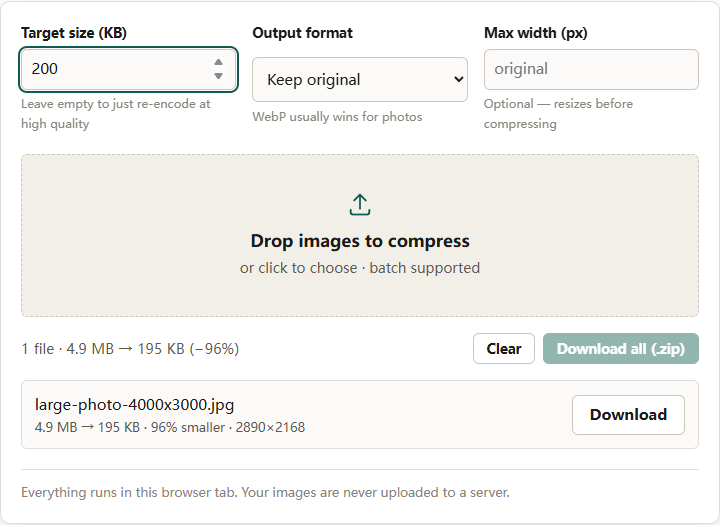
A 3000-pixel photo at 50 KB is not a realistic combination for most content. The compressor will search quality and then shrink dimensions, and it will say so when it cannot reach the target. At that point, lowering the number again does not help.
What to check first
Check the pixel dimensions and the format before the byte count. If either one violates a stated rule, the byte count is irrelevant. If both are within the rules and the file is still rejected, then the byte limit is the real constraint and compression is the right tool.
Also check whether the form has a minimum dimension. Some identity and print uploads reject images that are too small, which is the opposite problem and cannot be fixed by compression.
What to change, in order
First, crop to the required frame
If the form specifies an aspect ratio, crop before resizing. The social crop tool has Crop preset for common ratios and Crop anchor for deciding which edge survives. Output width (px) controls the final width and never upscales beyond the crop. Cropping first removes pixels that would otherwise consume bytes, and it prevents the resize step from distorting the image.
Second, resize to the required pixel dimensions
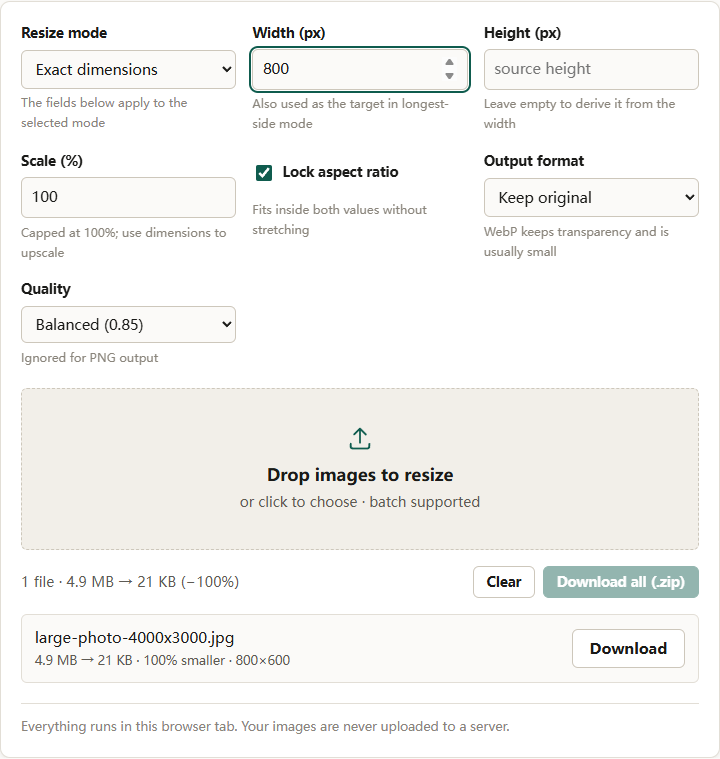
Use the image resizer. Exact dimensions is the mode for a stated width and height. Keep Lock aspect ratio on unless the form demands exact values that differ from the source ratio; with the lock on, the two fields act as a bounding box. Longest side is simpler when the rule is no side longer than 1200 pixels. Percentage is capped at 100, so it cannot accidentally create a giant file.
Do not upscale to meet a minimum. A soft enlargement passes the pixel check and looks worse. Find a larger original or accept the limitation.
Third, choose the output format
If the form accepts WebP, it is usually the smallest option for photographs and keeps transparency. JPEG is the safest for compatibility. PNG is the right choice for screenshots and text, but it will not respond to a quality setting; the only lever left is dimensions. Make this choice before the final compression pass so you are not encoding twice.
Fourth, compress to the byte limit
Use the image compressor with Target size (KB) set slightly below the stated limit. If you already resized to the exact dimensions, leave Max width empty; otherwise it is a useful guard. Set Output format to the format the form requires. The compressor searches encoder quality first and reduces dimensions only when quality alone cannot reach the target. The row reports the final size and dimensions, and it reports could not reach target size when the target is unreachable.
The 100 KB guide walks through the same logic with more detail on what a given byte budget can support.
Fifth, verify the exported file, not the preview
Open the downloaded file’s properties and check the byte count and dimensions. Upload it. If it is still rejected, compare the rejection message with the file. A mismatch usually means the form is checking something you have not measured, such as a minimum dimension or a format whitelist.
Why this order
Compressing first and resizing second spends quality on pixels that are about to be discarded. Resizing first also makes the compressor’s job easier: fewer pixels means more bits per pixel at the same byte target, which usually looks better. Cropping first prevents the resize step from stretching content that was never meant to fill the frame.
Format choice sits between resizing and compression because it changes which levers exist. PNG has no quality search; JPEG and WebP do. Choosing the format last can force a second encode.
Common wrong turns
Lowering Target size (KB) repeatedly after the compressor reports could not reach target size. The message means the combination is impossible, not that the search needs a smaller number.
Converting a text screenshot to PNG because it is lossless, when the form wants bytes. PNG is lossless, and that is exactly why it stays large.
Renaming a file from PNG to JPG. The bytes do not change, and a header-reading validator will still see PNG.
Upscaling a small image to satisfy a minimum dimension. It adds pixels, not detail, and the result is soft. The blur guide explains why.
The short version
Read the rejection, identify whether the limit is bytes or pixels, and fix the earlier constraint first. Crop, resize, choose the format, then compress to the byte target. Verify the exported file. If the tool says the target is unreachable, change the dimensions or the format rather than the number.