Resizing
Why Resized Images Look Blurry
You export at 1200 pixels, drop the file into the page, and the text edges look smeared. The resize itself is rarely the culprit. Usually the detail was never in the source, or it was thrown away before the resize you are blaming.
The symptom
Text edges turn to mush. Faces lose eyelashes and skin texture. The file looks acceptable in a thumbnail and wrong at full size. Sometimes the same image looks sharp in one application and blurry in another, which usually means the two applications are displaying it at different sizes.
The causes, ranked
1. The output is larger than the source
Asking a 640-pixel image to become 1080 pixels does not add detail. It adds interpolated pixels. The result is softer than the source because the encoder is guessing values between known pixels. This is the most common cause when someone says the image was resized to the size the site asked for and the source was a small download or a screenshot.
2. The output is smaller than the space where it is displayed
The inverse problem is just as common. An image exported at 800 pixels and placed in a 1200-pixel slot is upscaled by the browser. The file is the right format and the right quality; it is simply too small for its box. Check the rendered width, not only the file’s dimensions.
3. The image was resized more than once
Each resize resamples the pixels. Each JPEG save adds a generation of loss. A photo that went from original to 2000 pixels, then to 1200, then to 800 can look worse than one taken directly from the original to 800. The loss is cumulative even when each step seems reasonable.
4. The quality setting is too low
At 0.70, JPEG starts to show blocking in gradients and around text. The image can look both soft and blocky at the same time. PNG output ignores the quality setting, so a blurry PNG is not a quality-slider problem.
5. The aspect ratio was forced
With Lock aspect ratio off, width and height are applied independently. A face becomes wider or narrower, circles become ellipses, and the eye reads the distortion as blur. The pixels may be sharp; the geometry is wrong.
6. The source was already soft
Digital zoom, a still frame from a video, a screenshot of a compressed image, and a photo that was already heavily compressed all start with less detail. Resizing cannot recover it. This cause is last because it is the one you cannot fix in the resizer; you can only avoid making it worse.
7. The resampling method is poor
Different resize implementations use different filters, and some preserve edges better than others. That variability is real, but it is a tie-breaker, not the first suspect.
What to check first
Compare three numbers: the source dimensions, the output dimensions, and the CSS width where the image is displayed. If output width is greater than source width, you upscaled. If output width is less than the display width, the browser is upscaling. Both produce blur, and both are fixed by choosing a different output size, not by sharpening.
Then check the quality value and whether the aspect lock was on. Finally, view the result at 100 percent rather than fitted to the window; a fitted preview hides softness.
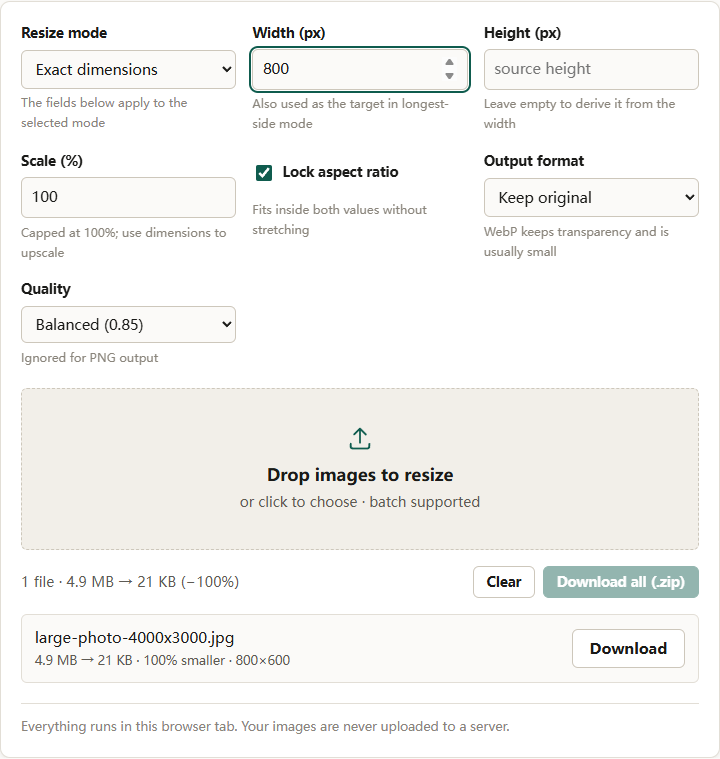
In our run, a 4.9 MB 4000×3000 JPEG resized to 800 px wide produced a 21 KB file at 800×600 in 240 ms. The output matched the width that was requested; whether it looks sharp still depends on the size of the slot where that 800 px copy is displayed.
What to change
Resize down from the largest original
Use the image resizer in Longest side mode with the width the image is actually displayed at. If the layout shows it at 800 pixels, 800 is the target; if you need to support high-density screens, 1600 is the target. Lock aspect ratio should stay on unless a form demands exact dimensions. Choose Quality High (0.92) for text and graphics, Balanced (0.85) for photographs.
Exact dimensions is for requirements, not for improvement. Leave the height field empty when you want the width to drive the result. With the lock on, width and height act as a bounding box, so a wide photo asked for a square box fits inside it rather than stretching.
Never upscale to meet a pixel requirement
If a form demands 1080 pixels and the source is 640, the honest options are to find a larger original, accept a soft enlargement, or change the requirement. Upscaling produces a file that passes the pixel check and looks worse than the source. The resizer allows upscaling only in Exact dimensions mode; that is a deliberate speed bump, not a missing feature.
Crop instead of stretch
When the problem is the shape, not the size, use the social crop tool. Crop preset sets the ratio, Crop anchor decides which edge survives, and Output width (px) scales the crop down without ever inventing pixels. A 4:5 portrait cropped from a wide photo keeps its proportions; the same photo forced into 4:5 by the resizer does not.
Export once, from the best source
Go from the original to the final size in one pass. If you must resize again, start from the original rather than the already-resized copy. Every intermediate JPEG is a generation you cannot undo.
Match the display, not the camera
A 4000-pixel photo is not a web asset at 4000 pixels. Exporting at two times the CSS width is a practical compromise for high-density screens: the browser downscales when needed, and downscaling is more forgiving than upscaling. The website image guide covers the performance side of the same decision.
Why sharpening is not the first fix
Sharpening adds local contrast around edges. It can make a slightly soft image look crisper at normal size, but it cannot restore detail that is missing, and it exaggerates compression artifacts. If the image was upscaled, sharpening produces halos around edges that were invented by interpolation. Fix the size first; sharpen only after the geometry and pixel count are correct. This site’s resizer has no sharpening control, which keeps the decision honest.
The short version
Blur after resizing comes from resizing in the wrong direction, resizing too many times, or exporting too small for the display. Compare source, output, and display dimensions before changing any setting. Resize down from the largest original in one pass, keep the aspect ratio locked, and use a high enough quality for the content. No setting can recover detail that was never captured.