Formats
Image Formats for Print vs Web
The same photograph can leave your desk twice: once as ink on a sheet of paper, once as pixels glowing on a screen. Print is judged at a fixed physical size; the web is judged in a window that may be any size at all. Format, color mode, and resolution all follow from that split, which is why renaming a JPEG does not turn a web file into a print file.
Getting this wrong is expensive in a way that web mistakes are not. A soft web image is a minor annoyance. A soft print image is a reprint.
Resolution: pixels first, then physical size
A digital image has pixel dimensions. It does not have an inherent physical size until someone assigns one. PPI, pixels per inch, is the ratio between the pixel grid and the printed dimensions.
A 3000 × 2000 pixel image printed at 300 PPI is 10 × 6.67 inches. The same file printed at 150 PPI is 20 × 13.3 inches. No pixels were added or removed. Only the density changed.
The common guideline for commercial printing is 300 PPI at the final printed size. That is a rule of thumb, not a law. Large-format work viewed from several feet away is often printed at 150 PPI or lower because the viewing distance hides the lower density. The printer’s specification overrides any general number.
For web, PPI is irrelevant. Browsers lay out images in CSS pixels and scale them to the display. A file tagged 72 PPI and a file tagged 300 PPI with the same pixel dimensions display identically. The old instruction to “set images to 72 PPI for web” is a leftover from a different era of layout software. What matters is the pixel count.
Color: RGB for screens, CMYK for ink
Screens emit light in red, green, and blue. Printing presses apply cyan, magenta, yellow, and black ink, and the result depends on the press, the paper, and the ink limit.
CMYK has a smaller gamut than RGB. Very saturated oranges, deep blues, and bright greens that look fine on screen may be outside what the press can reproduce. Converting to CMYK brings those colors into range, and the conversion is not reversible. A CMYK file converted back to RGB will not match the original.
This is why the color conversion belongs to the printer or the designer working with the printer’s profile, not to a browser tool. Canvas-based converters on the web operate in RGB. They cannot produce a true CMYK file, and they cannot embed a press profile. Do not use a browser converter as the final step for a print job.
Two related points:
- Rich black is a build of all four inks used for large dark areas. It is a press decision, not something you set by picking a dark color in an RGB file.
- Spot colors are premixed inks, often for brand colors. They live in the design file and the printer’s workflow, not in a JPEG.
If the printer asks for RGB, give them RGB and let them convert with their profile. If they ask for CMYK, supply CMYK from a tool that supports it.
Formats by destination
| Format | Web | Notes | |
|---|---|---|---|
| JPEG | Yes, at high quality | Yes | 8-bit only; no transparency; lossy |
| PNG | Rarely | Yes | Lossless; RGB; good for text and transparency |
| TIFF | Yes | No | Common print delivery; supports CMYK and 16-bit |
| Yes | No | Page layout and vector; the printer’s preferred container in many workflows | |
| WebP | No | Yes | Small, but not accepted by print workflows |
| SVG | Sometimes | Yes | Vector; ideal for logos and icons on web |
| PSD | Working file | No | Layered source, not a delivery format |
A print-ready PDF is usually the best container for a designed page because it can carry vector text, placed images, and the correct color space. A JPEG is acceptable for a photograph handed to a printer, provided it is large enough and saved at high quality. A PNG is the wrong choice for a CMYK print job.
Compression behaves differently on paper
JPEG artifacts that are invisible on a screen at normal size can be visible in print, because print holds detail at a fixed physical size and the viewer can hold it close. Ringing around text and blocking in smooth gradients are the usual offenders.
Avoid aggressive compression for print. If a JPEG is required, export at high quality rather than targeting a byte size. Print files are not subject to the upload limits that make compression necessary on the web, and a few megabytes are irrelevant on a press.
This is the practical reason not to reuse a web export for print. A 200 KB web JPEG may look fine at 800 pixels wide on a monitor. Printed at 8 inches wide, the same file is being stretched across far more physical detail than it contains.
Bit depth and editing headroom
Browser-encoded JPEG is 8 bits per channel. That is 256 levels per color, which is enough for final delivery but tight for heavy editing. Pushing contrast or color in an 8-bit file can produce banding in skies and smooth backgrounds.
Print workflows often keep 16-bit TIFF or PSD masters through the editing stage, then convert to 8-bit for delivery if the printer requires it. The extra depth is editing headroom, not more visible color on paper.
For web, 8-bit sRGB is the normal target. A 16-bit PNG will be converted or displayed as 8-bit by the browser, and the extra data only makes the file larger.
Transparency and layers
Print does not have an alpha channel in the way web does. A transparent PNG placed in a page layout is composited onto the page, and what matters is the final flattened result. Print files are usually flattened or have transparency handled by the layout application.
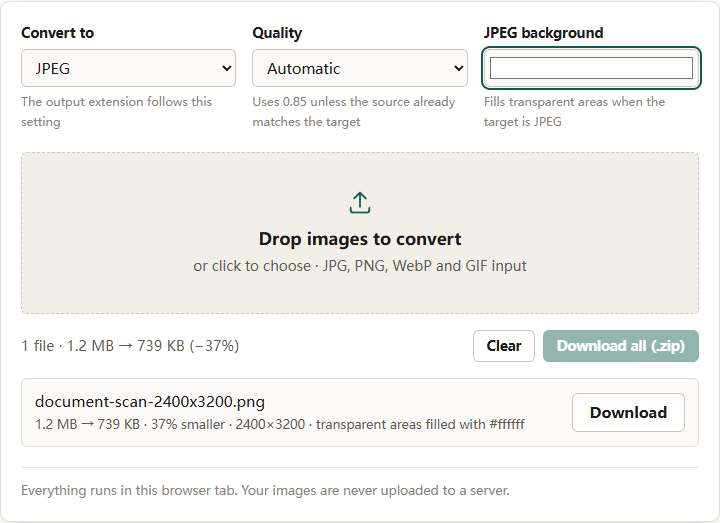
Web uses transparency actively: logos over colored backgrounds, interface elements, cut-out product shots. PNG and WebP preserve it; JPEG cannot. If a transparent asset is exported to JPEG, the empty pixels become a solid color, and that color has to be chosen deliberately.
A workflow that keeps both targets honest
- Keep one master. The original capture or the layered design file is the source for everything else. Do not derive the print file from the web file.
- Edit at full resolution. Crop and retouch before any export. Cropping after downscaling throws away the pixels you needed.
- Export print first. Full pixel dimensions, high quality, correct color space from a tool that supports it. Let the printer handle conversion if they have a house profile.
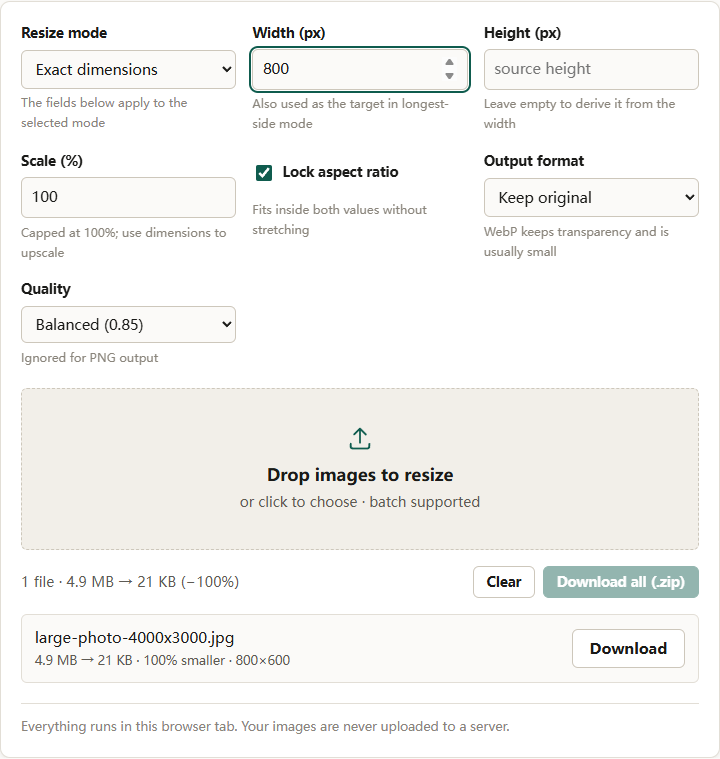
- Derive the web version. Resize to the display dimensions with the image resizer, then convert and compress. Exporting the web copy from the print master avoids inheriting print-era sharpening or CMYK conversion.
- Name the files by purpose. A suffix such as “-print” and “-web” prevents the wrong file from being sent.
Sharpening is target-specific
Print and web need different sharpening. A capture often needs input sharpening, and the output needs a final pass matched to the medium. Print sharpening accounts for ink spread on paper. Web sharpening accounts for downscaling and the display.
Applying print sharpening and then downscaling for web produces halos that survive the resize. Applying web sharpening to a print file leaves it under-sharpened on paper. Sharpen after resizing, separately for each target.
The short version
Print is physical and ink-based; web is pixel-based and light-based. Keep a full-resolution master, export print from a tool that handles CMYK and 16-bit data, and derive web images by resizing to pixel dimensions and compressing for delivery. PPI metadata does not change pixel count, and a browser converter is not a print pipeline.
For the web side of the decision, see PNG vs WebP vs JPEG and JPEG quality settings explained. For resizing without damaging the master, see resize an image without losing quality.