Get Photos Under Email Attachment Limits
Three phone photos, 18 MB on disk, and the mail client refuses to send. Nothing is broken. The file manager and the mail server are measuring different things: the limit on the provider’s help page applies to the encoded message, and encoding adds overhead before the file ever leaves your outbox. A folder that fits on disk can still fail against a mailbox that advertises 25 MB, or pass today and fail tomorrow when one more photo goes in.
The limit applies after encoding
Email attachments travel as MIME text. Binary data is converted to base64, which represents every 3 bytes as 4 characters. That is roughly 33 percent growth before headers, boundaries, and the message body are counted.
The practical consequence: divide the advertised limit by about 1.37 to get the amount of file data you can actually attach. A 25 MB ceiling leaves roughly 18 MB for the files themselves. A 20 MB ceiling leaves roughly 14.5 MB. If you fill the quota exactly with files, the encoded message will exceed it.
Know which number your provider enforces
Attachment ceilings are provider policy, not a standard. They also change without much notice, and a work account can be configured differently from a personal one.
| Account | What is documented |
|---|---|
| Gmail personal accounts | 25 MB per message, including attachments (support.google.com/mail/answer/6584, checked 2026-10-25) |
| Gmail work or school accounts | Set by the account administrator; do not assume the personal-account figure applies |
| Outlook.com, Microsoft 365, Yahoo Mail, iCloud Mail | Limits vary by provider and plan, and they change without much notice; check the provider’s current help page |
Treat that list as a starting point rather than a guarantee. The safer habit is to target roughly two-thirds of the advertised number, which leaves room for encoding overhead and for the recipient’s own mailbox rules.
Two ways to solve the problem
There are only two honest approaches. Make the files smaller, or stop attaching them.
Making them smaller is the right choice for a handful of photos that the recipient will view on a screen. Sending a link to a cloud folder is better for a shoot, a scan set, or anything that needs the full-resolution original. A link also avoids the mailbox quota entirely, at the cost of requiring the recipient to have access.
The rest of this guide covers the first path, because it is the one people attempt most often and the one where the wrong settings waste the most time.
Resize first, compress second
The order matters. If you compress a 12-megapixel photo to fit an email limit and then resize it, you have thrown away quality twice. Resize to the dimensions the recipient will actually view, then compress the smaller file to the byte target. The result is sharper at the same size.
Step 1: bring the dimensions down
- Open the image resizer. Processing happens in the tab; no file is uploaded.
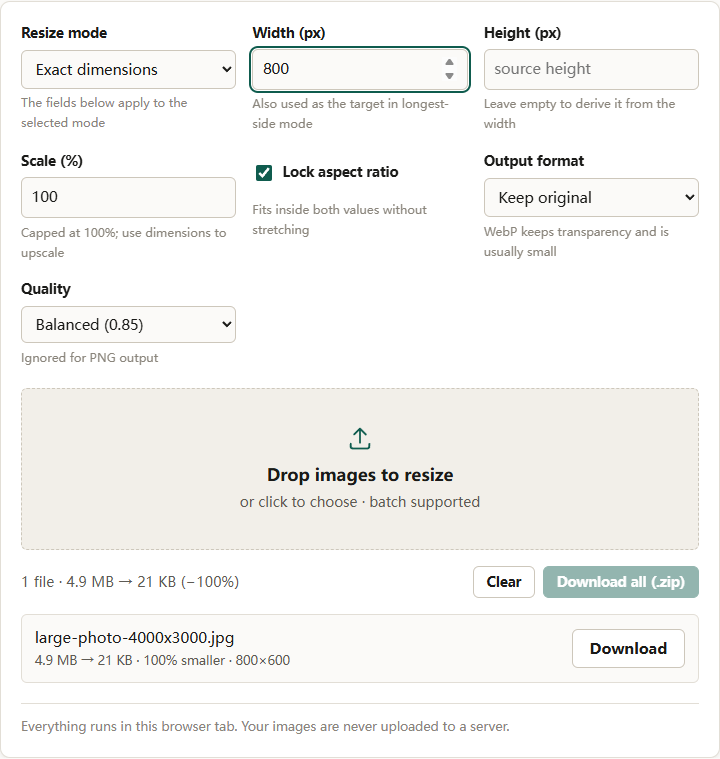
- Set Resize mode to Longest side. The Width (px) field becomes the maximum for the longer edge.
- Enter 1600 in Width (px). That is enough for a photo viewed on a laptop or phone, and it is a reasonable compromise for a group of images that must fit one message.
- Leave Lock aspect ratio checked. The shorter side is calculated from the source proportions, so nothing is stretched.
- Set Output format to JPEG and Quality to Balanced (0.85). If the source is a PNG screenshot rather than a photo, leave Output format on Keep original and expect a larger file.
- Add the files and download them. Each row reports the final dimensions.
Step 2: compress to a byte budget
- Open the image compressor.
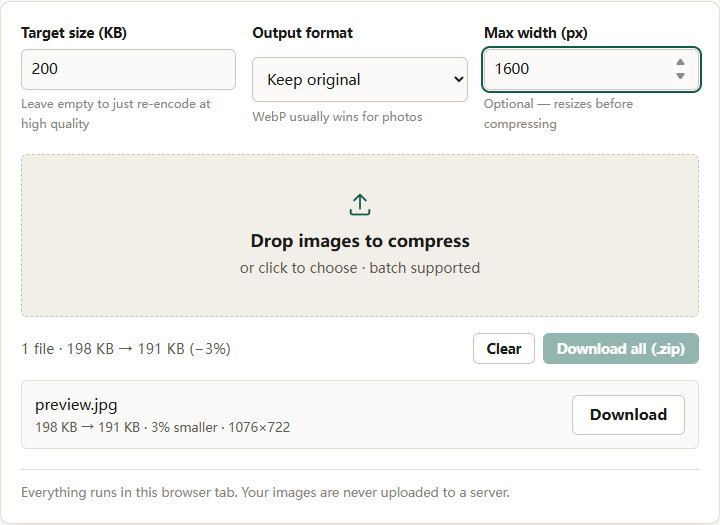
- Enter a Target size (KB) based on the total budget. For three photos in a 25 MB mailbox, 1500 KB each leaves plenty of room for encoding overhead.
- Leave Output format on Keep original, since the files are already JPEG.
- Leave Max width (px) empty. The images were sized in the previous step, and setting it again would only shrink them further.
- Add the resized files and download each one, or use Download all (.zip).
Add up the actual output sizes before you attach anything. The total depends on the photos, their dimensions, and the quality setting, so measure the batch you are about to send rather than assuming the disk total is what the provider will see.
Resize for the screen, not for the camera
A modern phone camera produces images far larger than any email recipient needs. The extra pixels are useful if someone will crop or print, and wasted if the photo will be viewed in a message window.
A long side of 1600 pixels is a sensible default for a few photos. For a single hero image that someone may open full screen, 2000 pixels is still modest. For a document or receipt, the text has to stay legible, so check the result at 100 percent before sending rather than assuming a smaller file is fine.
Do not upscale. Sending a 1600-pixel image to the resizer with a width of 3000 adds pixels but no detail, and it makes the attachment larger for no benefit.
Zip does not solve the size problem
Zipping a folder of JPEGs feels like compression, but JPEG data is already compressed. The archive is usually roughly the same size as the originals, sometimes slightly larger once archive headers are added. A zip is useful for keeping a set together and for reducing the number of attachments; it is not a way to squeeze under a byte limit.
If the files are PNG screenshots or TIFF scans, zipping can help, because those formats may carry redundancy. Convert them to JPEG first if photographic quality is acceptable, then measure.
Formats the recipient can open
JPEG is the safest attachment format. It opens on virtually every phone, desktop, and webmail client. HEIC, the default on many iPhones, may not open on older Windows machines or some Android apps. If the recipient may be on an unfamiliar device, convert with the format converter before attaching.
PNG is the right choice for screenshots and images with transparency, but it is usually much larger than JPEG for photographic content. WebP is smaller still, yet some desktop mail clients and older viewers cannot display it, which makes it a poor choice for an attachment you cannot explain.
A pre-send checklist
- Add up the file sizes after encoding, not before. Roughly 1.37 times the raw total is the number the provider sees.
- Resize to the viewing size before compressing.
- Target two-thirds of the advertised limit, not the whole thing.
- Open one output file at 100 percent and read any text in it.
- Keep the originals. The emailed copies are derivatives.
- For more than a handful of photos, send a link instead of attachments.
- If a single photo still will not fit, the 200 KB JPEG guide and the 100 KB guide cover tighter byte targets in more detail.
The reliable summary: email limits measure the encoded message, base64 adds about a third, and dimensions decide whether the compressed result is still worth sending. Resize to what the recipient will see, then hit a byte target with headroom.