Resizing
Resize an Image to Exact Pixel Dimensions
The listing form wants 1200 × 800. The print lab wants 1800 × 1200. A template has a 640 × 640 hole. You type the numbers into the resizer, download the file, and the dimensions are not what you asked for, usually because the aspect lock turned your width and height into a box. Exact pixels are a specification, and the tool has to be told whether you mean a box or a command.
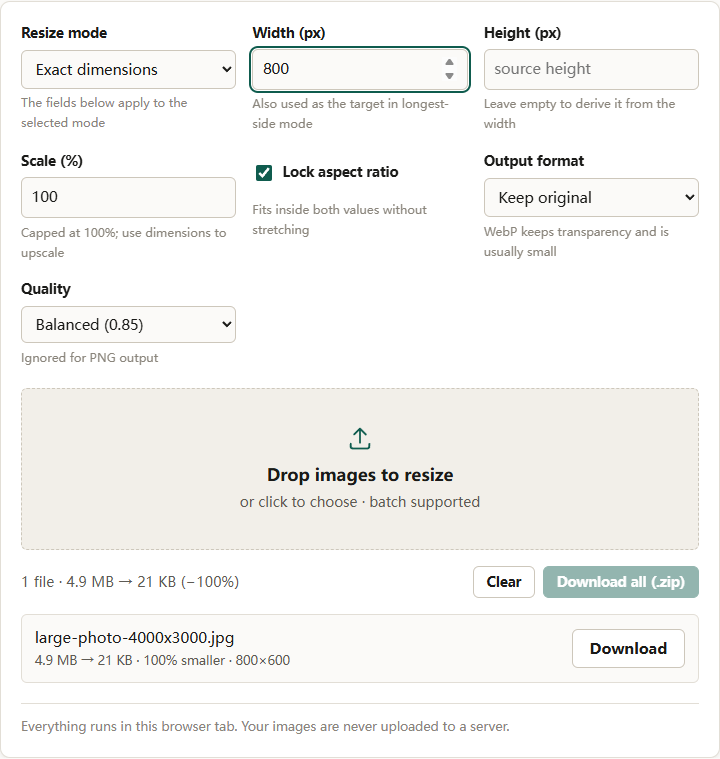
The image resizer has three modes, and the one that trips people up is Exact dimensions with the aspect lock still on. That combination does not force the output to the numbers you typed. It treats them as a box the image must fit inside.
What the aspect lock actually does
With Lock aspect ratio checked, Width (px) and Height (px) describe a bounding box. The image is scaled to fit inside both values without stretching, and the output keeps its original proportions.
A 4000 × 3000 photo asked for 800 × 1000 becomes 800 × 600, not 800 × 1000. It fills the width, and the height falls where the ratio dictates. The row summary reports the real result, which is why checking it matters.
With the lock off, the output becomes exactly 800 × 1000 and the image is stretched to fill it. That is the correct choice only when the target shape genuinely matches the source, or when distortion is acceptable.
Leaving one field empty is a third path: the missing dimension is calculated from the source ratio. Enter a width, leave height empty, and the height follows automatically.
The three modes at a glance
| Mode | Fields used | Behavior |
|---|---|---|
| Exact dimensions | Width, Height | With lock: fits inside both values. Without lock: exact output, possibly stretched |
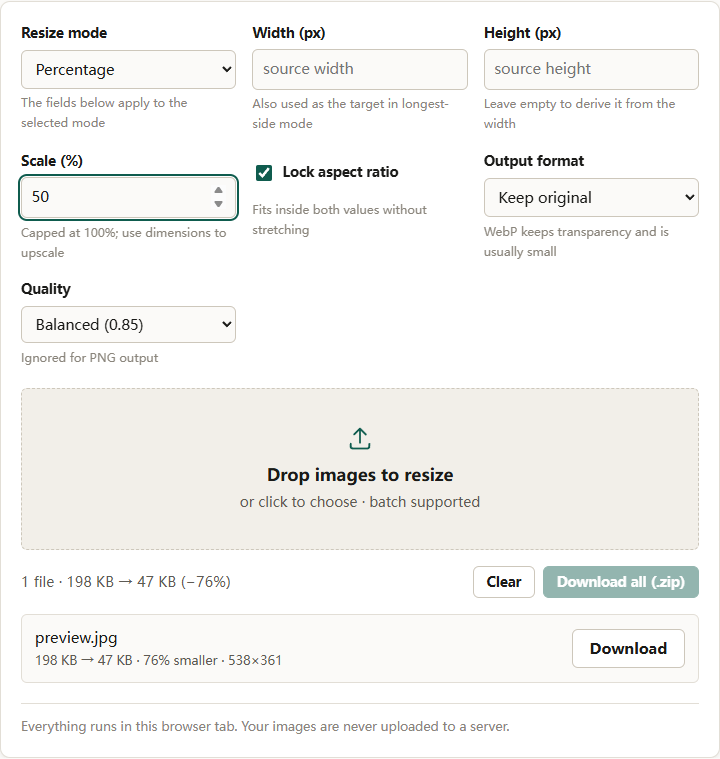
| Percentage | Scale (%) | Multiplies both dimensions by the same factor; capped at 100% |
| Longest side | Width (px) | Treats the value as a maximum for the longer edge; smaller images pass through unchanged |
Percentage mode is capped at 100 percent because a stray extra zero is an easy way to create a huge file by accident. If you need to enlarge, use Exact dimensions, where asking for a larger number is explicit. Longest side never enlarges: a 900-pixel image given a limit of 1200 stays at 900.
Resize to exact pixels, step by step
Suppose the target is 1200 × 800 and the source is a 4000 × 3000 phone photo. The source ratio is 4:3; the target ratio is 3:2. Those do not match, so the lock decision matters.
- Open the image resizer. Files are processed in the tab and never uploaded.
- Set Resize mode to Exact dimensions.
- Decide about Lock aspect ratio. With it on, 1200 × 800 will produce 1067 × 800, because the image fits inside the box. With it off, you get exactly 1200 × 800 and the photo is squeezed vertically.
- Enter 1200 in Width (px) and 800 in Height (px).
- Set Output format to JPEG for a photo, or PNG when transparency or crisp text matters. Choose Quality — Balanced (0.85) is a reasonable default, and it is ignored for PNG output.
- Add the files and download. Confirm the final dimensions in each row before using the result.
If the shape has to change, do not uncheck the lock and accept a stretched image. Crop first. The social crop tool combines preset ratios with a crop rectangle, and the editor handles a freeform crop. Resizing after cropping keeps the subject proportional.
Why the output is not always the number you typed
The most common complaint about exact resizing is that the height came out different. That is the aspect lock doing its job: width and height are limits, not commands. The second most common is a squashed result, which is the lock turned off on a source with a different ratio.
Before you start, compare the two ratios. Divide width by height for the source and for the target. If the results differ by more than a few percent, crop or accept the bounding-box result. A 4:3 source forced into 3:2 loses about 11 percent of its height to squeezing, which is enough to make faces look wrong.
DPI is not a pixel count
A JPEG can carry a DPI value in its metadata. That number does not add or remove a single pixel. It only tells a layout program how large to print the file by default, and most web workflows ignore it entirely.
Print size is a calculation: pixels divided by pixels per inch. A 1200 × 800 file printed at 300 pixels per inch occupies 4 × 2.67 inches. To print 6 × 4 inches at 300 pixels per inch, you need 1800 × 1200 pixels. Resizing a smaller file up to those numbers gives the printer the grid it expects, but it cannot recover detail that was never captured.
That distinction is covered in more depth in how to resize an image without losing quality.
Upscaling adds pixels, not detail
Enlarging works only in Exact dimensions mode. The resampler interpolates between existing pixels, which smooths edges and can make the result look soft or slightly painterly. A 600-pixel photo enlarged to 1800 pixels has nine times the pixels and no new information.
Compare the enlarged copy with the original at full zoom before you use it. The edges will be softer and noise will look larger and smoother, even when the picture seems acceptable at display size. If that difference matters, the answer is a better source, not a different resampling setting.
If the target size is non-negotiable and the source is small, the honest options are a better source image or a design that does not require enlargement. Sharpening after upscaling can make edges look crisper on screen, but it also amplifies noise and does not restore real detail.
What happens to transparency and metadata
PNG and WebP output keep transparent pixels. JPEG has no alpha channel, so a transparent source resized to JPEG is flattened against white. If the background must be a different color, convert first with the format converter, which lets you set the fill color for JPEG.
Re-encoding also applies EXIF orientation to the pixels and removes most camera metadata. A photo that arrived sideways will come out upright, and its capture date and location will not travel with the resized copy. Keep the original if those fields matter.
A checklist for exact dimensions
- Confirm the target ratio matches the source before turning the lock off.
- Expect the bounding-box result when the lock is on; read the row summary.
- Use Exact dimensions when you need to enlarge; percentage and longest side will not do it.
- Treat DPI as print metadata, not as a quality control.
- Crop rather than stretch when the shape must change.
- Keep transparency by choosing PNG or WebP.
- Check one output row before processing a large batch.
The reliable habit is to ask what the two numbers mean. With the lock on they are a box; with it off they are a command. Knowing which one you asked for explains almost every surprising result.
For cases where the resized image still looks soft, why an image looks blurry after resizing walks through the causes in order.