Performance
What Actually Makes Website Images Slow
Open the same gallery on a phone and on a laptop. The laptop is fine. The phone shows gray boxes, then jumps as each photo lands. Recompressing every file might help, but it is the third thing worth checking, not the first, and starting there often leaves the real cause untouched.
An image has four costs, not one
Byte size is the cost everyone measures. The browser also pays to decode the pixels, to reserve layout space, and to rescale the source into the box where it is displayed. A file can be small on disk and still be expensive in the other three columns.
That is why “optimize your images” is incomplete advice. The useful question is which cost is dominant on this page.
The causes, ranked
1. The source is much larger than the display box
A 6000 by 4000 photo contains 24 million pixels. If the page shows it 600 pixels wide, the browser still decodes the full frame and then discards most of it. The bytes may be reasonable for a camera file. The decode and memory cost are not.
This is the most common cause because it is invisible in a file-size column. A 400 KB image can be oversized by a factor of ten in each direction.
2. A photograph is stored as PNG
PNG is lossless. It has no perceptual model that throws away detail the eye will not miss, so photographic noise, skin texture, and foliage survive at full cost. A photo saved as PNG is usually far larger than the same photo saved as JPEG or WebP at a comparable visual result. The PNG size guide covers the mechanics.
3. The encoder setting was never chosen
Saving as JPEG is not a size decision. Quality 100 can produce a file substantially larger than quality 0.85 with little visible benefit, especially on a photo that will be displayed at 800 pixels. Repeated saves add another generation of loss each time.
4. Too many images load immediately
A carousel that loads every slide, a gallery that renders all thumbnails at full size, or a page that requests twenty product photos before the visitor scrolls all spend bandwidth on images nobody has looked at. The loading="lazy" attribute on below-the-fold images is the standard fix. Do not apply it to the main hero image; delaying that one makes the page feel slower, not faster.
5. The dimensions are not declared
Without width and height attributes, the browser does not know how much space to reserve. Content jumps when each image arrives. The page may finish loading in the same total time and still feel unstable, which readers describe as slow.
6. Delivery is misconfigured
Caching headers and transfer compression matter, but they are lower on this list for a reason. JPEG, PNG, and WebP are already compressed, so enabling gzip or Brotli on them yields little. A missing cache header makes repeat visits slow. Neither problem is fixed by re-encoding the file.
What to check first
Open the browser’s developer tools, switch to the Network panel, enable the disable-cache option, and reload at a phone-sized viewport. Sort by size and look at the largest image requests. For each one, compare the intrinsic dimensions with the rendered dimensions. If the intrinsic width is more than about twice the rendered width, the file is a candidate for resizing before anything else.
Do not trust a performance score as a diagnosis. Scores change with the test environment and with the scoring rules. The network panel tells you what was actually transferred.
What to change, in order
First, match the pixel dimensions
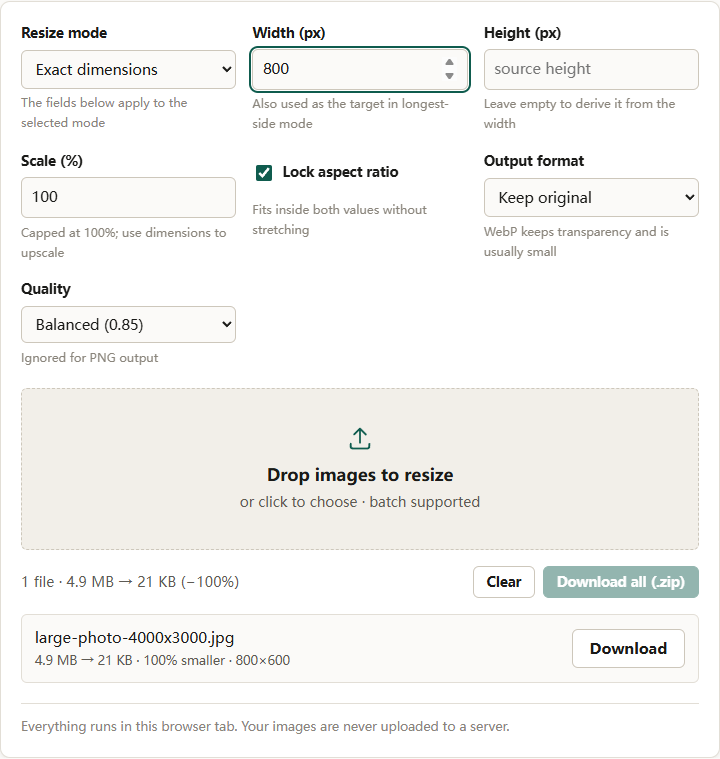
Use the image resizer in Longest side mode. Enter the widest size the image is actually displayed at, multiplied by two if you need to support high-density screens. Lock aspect ratio keeps the shape. For text-heavy images choose Quality High (0.92); for photographs, Balanced (0.85) is usually enough.
If a layout gives you an exact box, use Exact dimensions instead and leave one field empty so the other side is derived. Do not upscale a small source to fill a large box; that adds pixels without detail, which is the subject of why resized images look blurry.
Second, choose the format by content
Photographs belong in WebP or JPEG. Screenshots, diagrams, logos, and text belong in PNG unless they are photographic. WebP is usually the smallest option for photos and keeps transparency. JPEG is the safest when a destination rejects unfamiliar extensions. The format comparison explains the trade-offs without pretending one format wins everywhere.
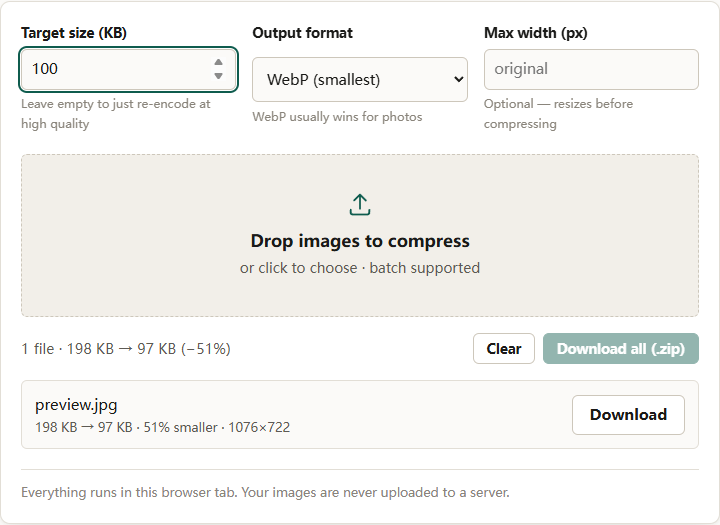
The image compressor can do this in one pass: set Output format to WebP, leave Target size (KB) empty for a high-quality re-encode, and add an optional Max width as a guard against oversized sources.
Third, apply a byte budget only if one exists
A byte target is a form requirement, not a performance strategy. If the page has a budget, enter it in Target size (KB). The compressor searches quality first and shrinks dimensions when the target cannot be reached, and it reports could not reach target size when the result still misses. That message is useful: it means the requirement and the image are incompatible, not that you should keep lowering the number.
Fourth, fix the markup
Add width and height attributes that match the file’s aspect ratio. Use srcset and sizes when the same image appears at different widths. Lazy-load images below the fold. These changes cost nothing in image quality and address costs that recompression cannot touch.
Fifth, check delivery
Confirm that images are served with a long cache lifetime and that the server is not adding unnecessary work. This is a deployment question, not an image-editing question. Do it after the files themselves are right.
Why the order matters
Compressing before resizing wastes the compression. You spend quality on pixels that are about to be discarded, then encode again at the smaller size and lose more. Resizing first means the encoder spends its budget on pixels that will survive.
Converting before resizing has a similar problem when the output format has no quality control. A PNG target cannot be tuned by quality; the tool can only reduce dimensions. Decide the dimensions first, then the format, then the byte target.
What not to do
Do not convert a text screenshot to JPEG just to make it smaller. The artifacts land on exactly the edges people need to read.
Do not lazy-load the hero image. Do not upscale a small image and call it optimized. Do not chase a perfect score; the thresholds and audit rules used by scoring tools change, so verify the current definitions before quoting any number.
The short version
Find the largest gap between source pixels and displayed pixels, fix that first, then choose the format, then compress to a byte budget if one exists. Declare dimensions and defer offscreen images. Most slow image problems are sizing problems wearing a compression costume.